|
|
| Line 8: |
Line 8: |
| | [[Image:Dc1.png | frameless |1200px]] | | [[Image:Dc1.png | frameless |1200px]] |
| | | | |
| − | In order to add a new discount coupons click on the [[Image:DC2.png]]
| |
| − | And it will redirect you to the
| |
| − |
| |
| − | [[File:DC3.png|frameless|1200px ]]
| |
| − |
| |
| − | Coupon Code: Code of the coupon (Customers will use this code to avail the discount)
| |
| − |
| |
| − | Coupon Name: Name of the coupon
| |
| − |
| |
| − | Coupon Start Date: The date on which coupon will release
| |
| − |
| |
| − | Coupon End Date: The date on which coupon’s service will stop
| |
| − |
| |
| − | Coupon Type:
| |
| − | #'''Percentage:''' It is the percentage of a whole price that is taken off as a discount.
| |
| − |
| |
| − | For example: Suppose you take 20 % off on a product having original price Rs.1000
| |
| − |
| |
| − | Then the sale price will be 1000 × (1 - 20%) = Rs.800.
| |
| − | The formula is
| |
| − | {| class="wikitable"
| |
| − | |-
| |
| − | |Sale Price=Original Price*(1-Discount %)
| |
| − | |}
| |
| − |
| |
| − |
| |
| − | #'''Flat Amount:'''Here the amount(Flat Amount) will deduct from the original price of the product
| |
| − | For example: Suppose you take Rs.20(Flat Amount) off on a product having original price Rs.1000.
| |
| − | Then sale price will be 1000-20=Rs.980
| |
| − | The formula is
| |
| − | {| class="wikitable"
| |
| − | |-
| |
| − | |Sale Price=Original Price-Flat Amount
| |
| − | |}
| |
| − |
| |
| − | Discount: This will display the value of the discount
| |
| − |
| |
| − | Min Order Amount: Apply the discount (Min Order Amount) for orders above this amount
| |
| − |
| |
| − | Total Available: Total numbers of coupons available
| |
| − |
| |
| − | Total Used: This will indicate how many coupons left after use
| |
| − |
| |
| − | Active: This will indicate whether the coupon is active or not.
| |
| − |
| |
| − | For example
| |
| − | Suppose you want to dive a discount coupon having Coupon Code: CC500, Coupon Name: Season’s Offer
| |
| − | Coupon Start Date: 22 April 2014, Coupon End Date: 24April 2014, Coupon Type: Percentage
| |
| − | Discount:20,Min Order Amount:100,Total Availble:10,Total Used:0,Active:Yes.Add these values into respective fields and click on the [[Image:AddBtn.jpg]] button.
| |
| − |
| |
| − | [[Image:DC4.png | frameless |1200px]]
| |
| − |
| |
| − | [[Image:DC5.png| frameless|1200px]]
| |
| − |
| |
| − | In the Store’s page
| |
| − |
| |
| − | [[Image:DC6.png| frameless |1200px]]
| |
| − |
| |
| − | you can edit the existing discount coupon,just click on the coupon code(example:CC500) under the coupon code column
| |
| − |
| |
| − | [[Image:dc6.png | frameless | 1200px]]
| |
| − |
| |
| − | By clicking it will leads to the page like below,where you change as per your requirement in the existing discount coupon
| |
| − |
| |
| − | [[Image:dc8.png | frameless|1200px]]
| |
| − |
| |
| − |
| |
| − | '''Note: By default your discount coupon will not show on the Store’s page in order to show that you can add a widget.'''
| |
| − |
| |
| − | Go to store manager > SETUP>WIDGETS.
| |
| | In the Show Discount Coupon with section lets you search the “DISCOUNT COUPONS” in the list | | In the Show Discount Coupon with section lets you search the “DISCOUNT COUPONS” in the list |
| | | | |
What is Discount Coupon?
This allows the merchant to generate coupons for promotional purposes. There is a wide range of features, such as percentage off discounts, fixed amount discounts, in order amount etc.
Where I will get Discount Feature feature?
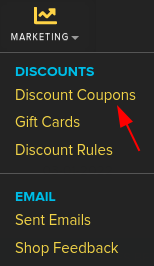
Go to store manager > MISC > DISCOUNT COUPONS
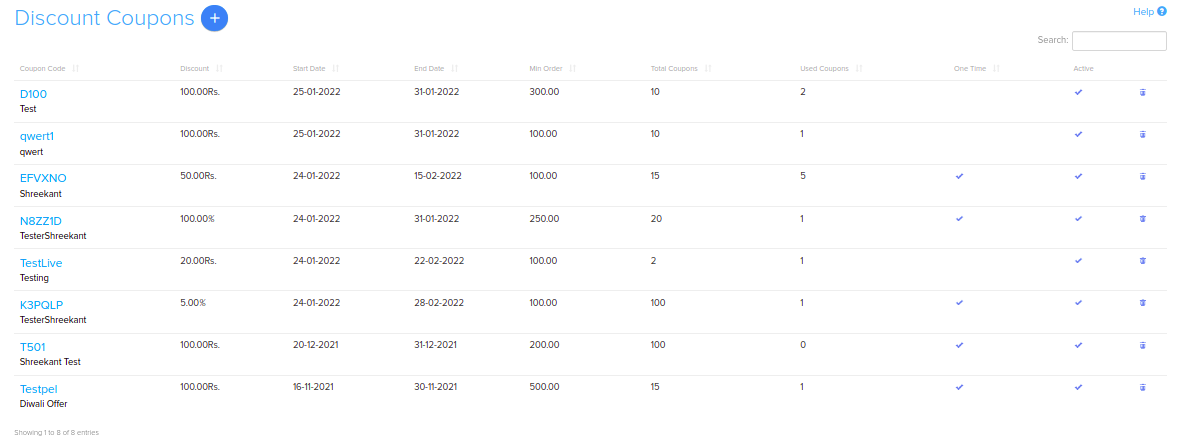
In the Show Discount Coupon with section lets you search the “DISCOUNT COUPONS” in the list
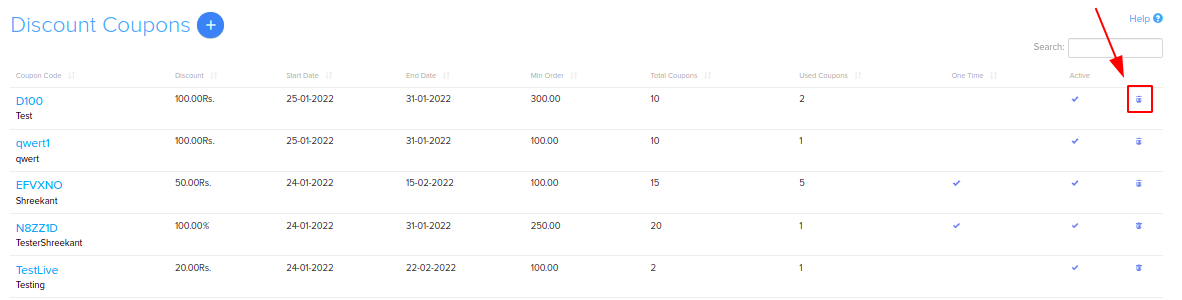
You can delete a discount coupon by clicking on the  button.



 button.