
Product widget
A product widget (the Static Products widget type) shows products you choose yourself, for example on your home page or product page. Use it to promote new launches or a special offer, for example a "Special Offer" block with five products.
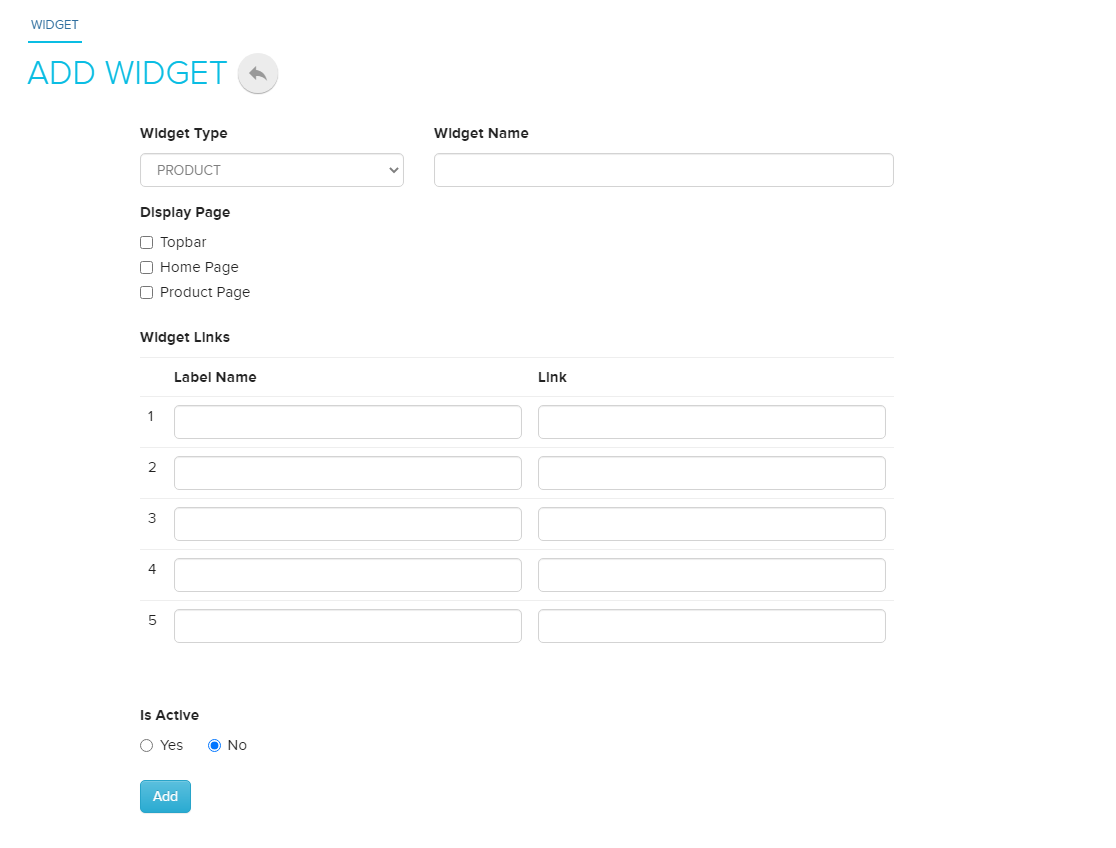
Create a product widget
- Go to Store Manager → Setup → Widgets.
- Click Add New Widget.
- Choose Static Products as the widget type.
- Enter a Widget Title, for example
Special Offer. - Under Show Widget In, choose where to show the widget, for example Home Page or Product Page. See Widgets for all the places a widget can appear.
- Optional: for a time-limited offer, set Sale Ends On.
- Optional: enter a label name and a link. The label appears under the widget and takes customers to the link.
- Click Add. A new Widget Products tab appears.
- Open the Widget Products tab and add products by typing their name or SKU. You can also change the order of the products.
Edit a product widget
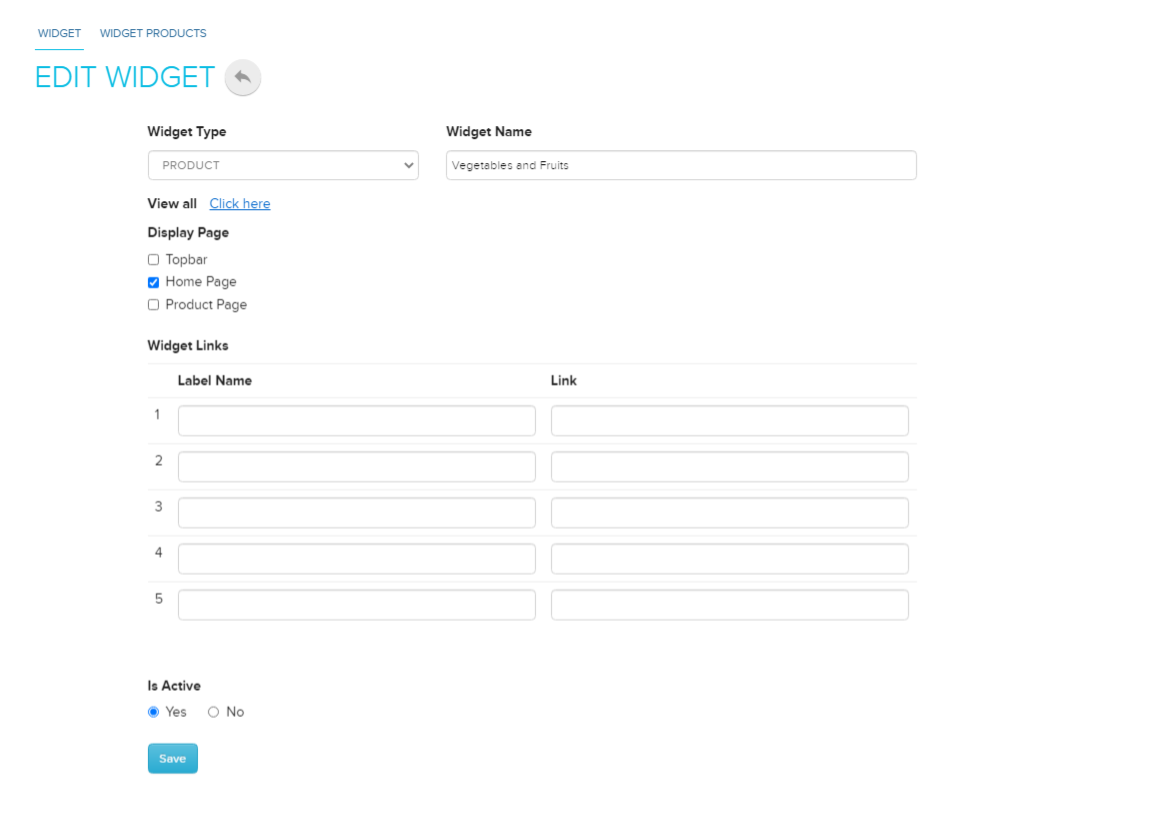
You can add, change or remove the products, labels and links of an existing widget.
- Go to Store Manager → Setup → Widgets.
- Click the widget's name, for example Special Offer.
- Make your changes, for example add a new label and link.
- Click Save.
What happens next
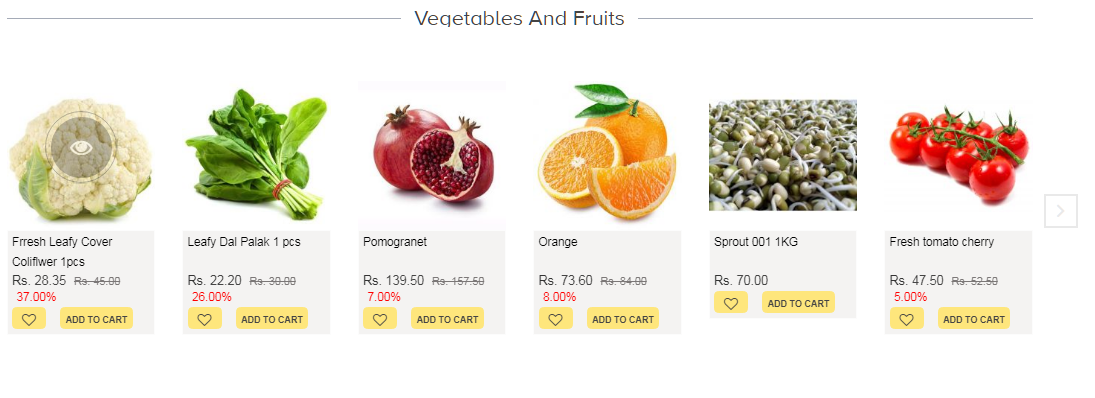
The widget appears on the page you chose, with its products and any labels and links under it.
Related articles
Need more help? WhatsApp us on +91 8880788813 or email us at support@shopnix.io.
No comments to display
No comments to display