
Add staff users and set permissions
Add staff users so other people can help you run your store from Store Manager. You choose what each staff user can do, from a few tasks to full control. All Shopnix plans let you add as many staff users as you like.
Types of staff user
| Type | What they can do |
|---|---|
| Administrator | Full access to Store Manager, including the Setup menu (shop profile, settings, users, theme and more). |
| Normal User | Sees only the menu items they have permission to use. Normal users don't see the Setup menu. |
Add a staff user
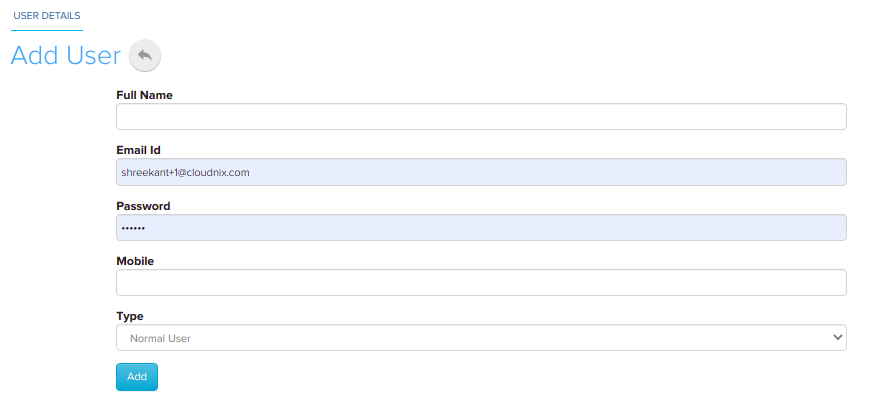
- Go to Store Manager → Setup → Users.
- Click + (Add User).
- Enter the staff user's Full Name, Email ID, password and Mobile.
- Select the Type: Normal User or Administrator.
- Click Add.
Set permissions
Choosing permissions for each staff user is available on the Mega plan (Premium on older plans). On other plans you see an upgrade prompt instead. See Upgrade or renew your plan.
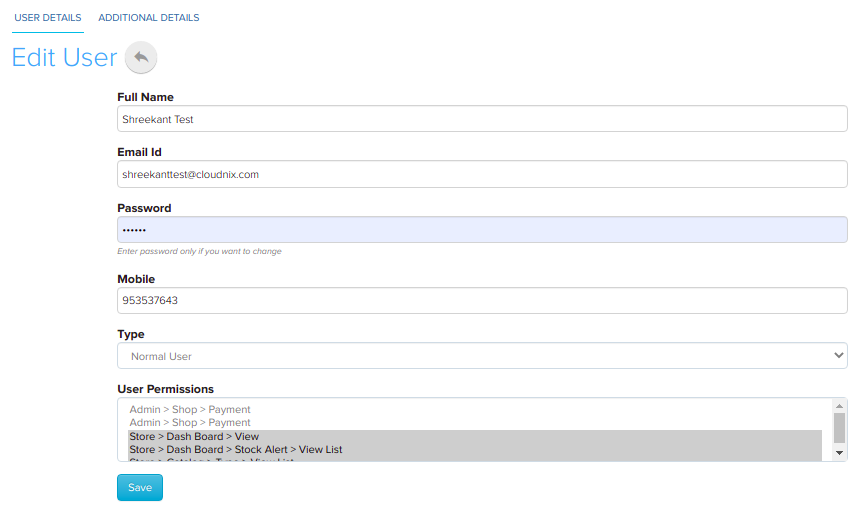
After you add a Normal User, the User Permission section lists the permissions they have. You choose them from a list of about 190 permissions, for example Store → Product → Add, Store → Order → Modify or Store → Report → Stock Report. Each permission controls one menu item or action in Store Manager.
- In Store Manager → Setup → Users, click the staff user's name.
- In the permissions table, find the permission you want to take away. For example, Store → Catalog → Type → Delete lets the user delete types.
- Click the remove button on the right of that row.
- Click Save.
Add extra details to a staff user
Use the Additional Details tab to store extra information about a staff user as a tag name and tag value, for example Age and 20.
- Click the staff user's name in the Name column.
- Open the Additional Details tab.
- Enter the Tag name and Tag value.
- Click Add.
Create an API key
Each staff user can have an API Key. Other software uses this key to connect to your store. To create one, click the user's name, generate the key next to API Key and save. You can regenerate the key at any time. See Connect other software with the API.
View or delete staff users
- Go to Store Manager → Setup → Users to see everyone who can log in to Store Manager. The store owner (admin) is marked with an icon.
- To delete a staff user, click the delete icon at the end of their row.
- Confirm in the pop-up.
Related articles
- Log in to Store Manager and find your way around
- Update your shop profile
- Upgrade or renew your plan
- Connect other software with the API
- Run franchise stores
Need more help? Email support@shopnix.io or call +91 8880788813.
No comments to display
No comments to display