
Update your shop profile
Your shop profile holds your store's identity: its name, contact details and logo. Shopnix uses these details in the emails it sends to customers, such as order confirmations and welcome emails, so keep them accurate.
Update your shop profile
- Go to Store Manager → Setup → Shop Profile. The Profile tab opens.
- Edit the details you want to change. See the fields below.
- Click Save.
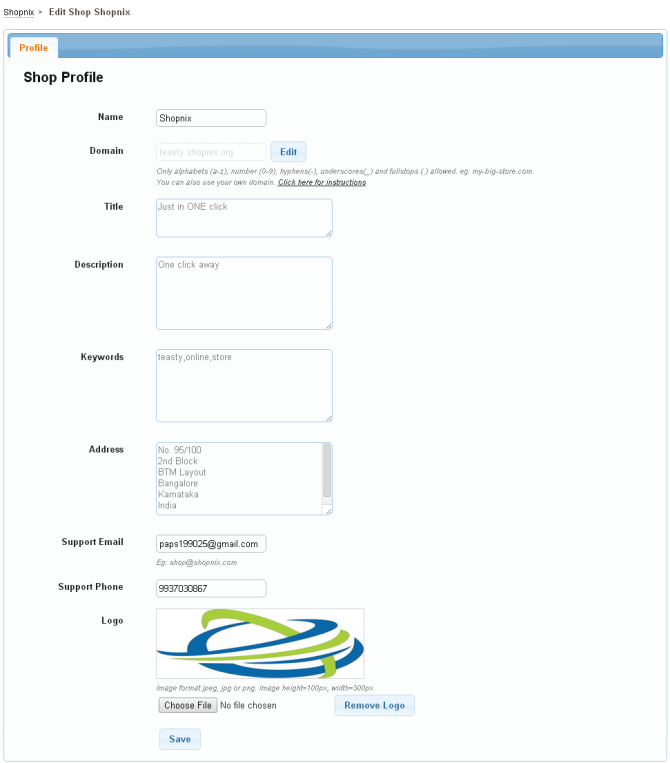
Shop profile fields
| Field | What it does |
|---|---|
| Name | The name of your store. |
| Domain | Your store's address. This can be your free Shopnix address or your own domain. See Connect your own domain. |
| Enable SSL | Use a secure (https) address for your store. |
| Title | Your store's title, used for your home page in search results. |
| Description | A short description of your store, used for your home page in search results. |
| Keywords | Words that describe your store and products. |
| Address | Your business or office address. |
| Support Email | The email address customers use to contact you. Shopnix also sends its automatic emails to this address, such as new sign-ups and new orders. |
| Support Phone | The phone number customers use to contact you. |
| Theme Color | The main colour of your store. See Change your store colours. |
| Logo | Your store logo, shown on every page of your store. Use a JPEG, JPG or PNG image, 300px wide × 100px high. |
| Favicon | The small icon shown in the browser tab. |
Click Generate with nixi to let Shopnix's AI write your store's title, description and keywords for you. Check the text before you save. See SEO for your store.
Other tabs in Shop Profile
- Payment Gateway: your online payment gateway keys. This tab appears only after Shopnix has turned on a gateway for your store. See Enter your payment gateway keys.
- Currency: the currency and decimal places shown in your store. See Set your store currency.
- Tax Settings: GST and tax. See Set up GST and taxes.
Change your store's domain
- In Store Manager → Setup → Shop Profile, click the edit button next to the domain.
- Type the new domain name in the box. Use only lowercase letters, numbers, hyphens (-), underscores (_) and dots (.).
- Click the save button, then confirm in the pop-up.

After you change the domain, Shopnix takes you to the new domain and you need to log in to Store Manager again.
Related articles
- Connect your own domain
- Upload your logo
- Change your store colours
- Turn store features on or off (shop settings)
- Set up GST and taxes
- Set your store currency
Need more help? Email support@shopnix.io or call +91 8880788813.
No comments to display
No comments to display