
Turn store features on or off (shop settings)
Shop settings let you turn store features on or off and change values such as shipping charges and your bank account details for online transfers.
Open shop settings
- Go to Store Manager → Setup → Settings. The Shop Settings page opens.
- Click the tab you want, then the sub-tab, for example Orders → Checkout. See the tabs below.
- Find the row for the setting you want to change.
- To change a value, click it, type the new value and press Enter.
- To turn an option on or off, tick or untick the box in its row.
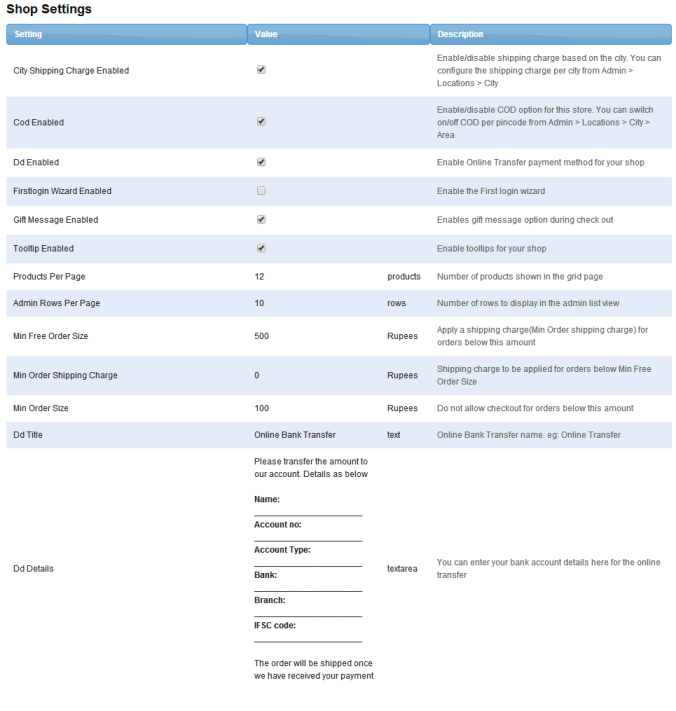
Settings tabs
| Tab → sub-tab | What you set there | More help |
|---|---|---|
| Admin Panel → General | How many rows each Store Manager list shows per page, and whether help tooltips are shown. | |
| General | OTP login for customers. | How customers log in (OTP, Google and Facebook) |
| Marketing → Gift Card | The minimum gift card value, and gift messages at checkout. | Sell and manage gift cards |
| Orders → Additional Charges | Minimum order size, the free-shipping amount and the shipping charge below it, and city and area shipping charges. | Minimum order and free shipping, Charge shipping by city |
| Orders → Checkout | Comment box, OTP validation, checkout without email activation, pincode-restricted delivery. | Checkout options |
| Orders → Cod | Turn cash on delivery on or off, the COD charge and the COD message. | Set up cash on delivery |
| Orders → Dd Or Bank Transfer | Turn bank transfer on or off, and your bank account details. | Accept bank transfers |
| Orders → Invoice | Invoice prefix and next invoice number. | Invoice numbering and thermal receipts |
| Orders → Tax | GST, your GST state, GSTIN, HSN codes and TIN. | Set up GST and taxes |
| Theme → Features | Product image label. | Customise your theme |
| Theme → Grid Page | Grid page clicker, and banner width and height. | Set product image size and zoom |
| Theme → Menu | The most categories and subcategories shown in the menu, and the vertical menu. | Set up menus |
Settings can be on/off switches, text, colours, images or a choice from a list. Some features are not in shop settings because Shopnix turns them on for you, such as delivery slots and desktop order alerts. Contact Shopnix support to ask for them.
Example: add a shipping charge for small orders
- Go to Store Manager → Setup → Settings and open Orders → Additional Charges.
- In the Min Order Shipping Charge row, click the current value (for example,
0). - Type
70and press Enter.
Customers whose order is below your Min Free Order Size now pay ₹70 shipping at checkout.
Related articles
- Checkout options
- Minimum order and free shipping
- Set up GST and taxes
- Charge shipping by city
- Offer cash on delivery by pincode
- Enter your payment gateway keys
- Get desktop alerts for new orders
- Update your shop profile
Need more help? Email support@shopnix.io or call +91 8880788813.
No comments to display
No comments to display