
Set up menus
Add a custom link
- Go to Store Manager → Setup → Menus.
- Enter the Menu Item. This is the text customers see in the menu.
- In the Link field, enter the address the item opens. This can be the address of a page in your own store or of an external website.
- Click Add New Menu Item to save it.
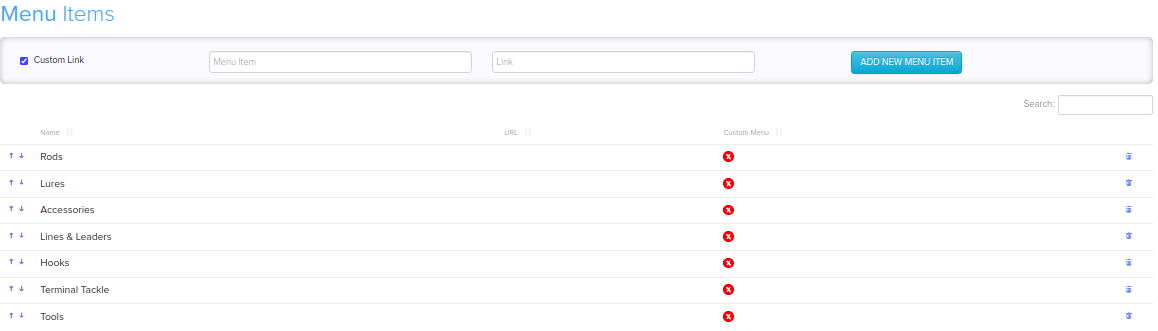
To link to a new page, create the page first. See Add and edit pages.
Edit a menu item
- Go to Store Manager → Setup → Menus.
- In the list, click the Name or URL of the item you want to change.
- Enter the new name or URL.
- Press Enter to save.

Show or hide catalogue entries
On Store Manager → Setup → Menus, you can also choose which of your types, categories and subcategories show in the storefront menu.
To limit how many categories and subcategories the menu shows, or to use a vertical menu, go to Store Manager → Setup → Settings, open the Theme tab and look under Menu.
What happens next
The updated item shows in the menu list and in your store's menu.
Related articles
Need more help? Email support@shopnix.io or call +91 8880788813.
No comments to display
No comments to display