
HTML widget
An HTML widget lets you add your own content or HTML code to your store. Use it to add things like third-party plugins, banners or videos without changing your theme.

What you can add
Create an HTML widget
- Go to Store Manager → Setup → Widgets.
- Click Add New Widget.
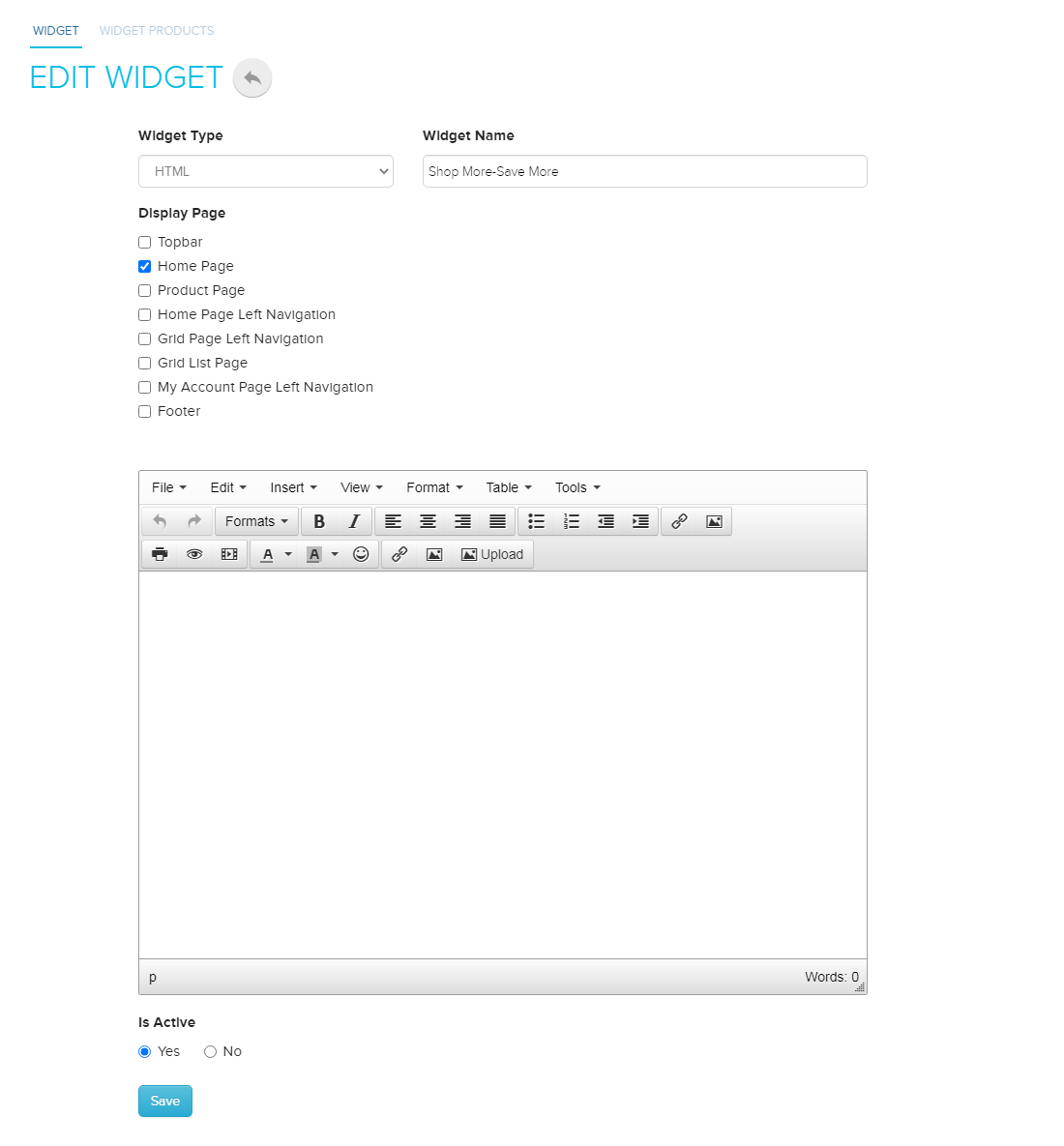
- Choose HTML as the widget type and enter a Widget Title.
- Design your widget in the editor. Use the editor's toolbar to add images, videos and other graphics.
- To paste HTML code, click the source code button in the editor toolbar. An editor opens where you can paste your code.
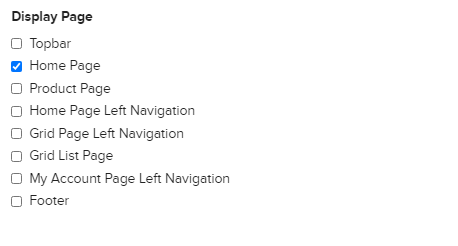
- Under Show Widget In, choose where the widget should appear, for example Home Page, Footer or Grid Page Left Navigation.
- Click Save.
- Refresh your store page in your browser. Your widget appears on the pages you chose.
Put the HTML part of a plugin in the widget. If the plugin also needs CSS or JavaScript, add that in your store's header or footer CODE page (Setup → Pages). See Add custom CSS and JavaScript. For example, for a blinking button, put the button's HTML in the widget and its CSS in the footer.
Related articles
Need more help? Email support@shopnix.io or call +91 8880788813.
No comments to display
No comments to display