
Add homepage banners
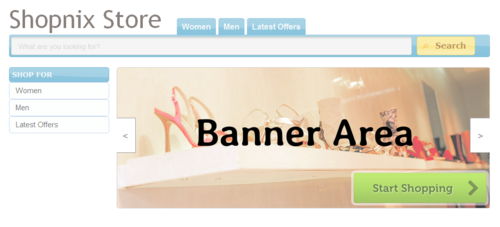
Before you start
- You can upload up to 5 banners.
- Use JPG, PNG or WEBP images.
- Make all banners the same size. The banner dimension settings on the Home Page tab show the size your theme uses. On many standard themes this is 740 pixels wide × 280 pixels high. Banners of other sizes look stretched or squashed.
- Your store comes with default banners. Replace them before your store goes live.
Change a banner
- Go to Store Manager → Setup → Theme.
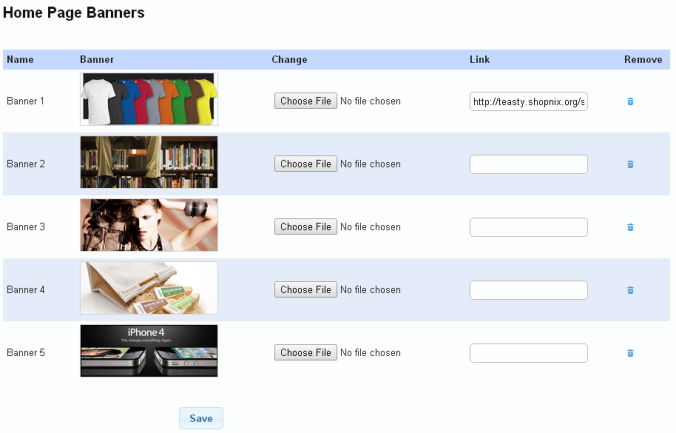
- Open the Home Page tab (Home Page Banners). It shows the banners your store uses now.
- Find the banner you want to change, for example Banner 1. Each banner has a Desktop Banner and a Mobile Banner, each with a Name and a Link.
- Click Choose File.
- Select the new banner image on your computer. It replaces the existing banner.
- When you have uploaded all your banners, click Save.
Link a banner to a page
When a customer clicks a banner, they can go straight to a page you choose.
- On the Home Page tab, find the Link box for the banner.
- Enter the page address, for example
YOUR-STORE.com/shop/clothing-apparel. - Click Save.

What happens next
Related articles
Need more help? Email support@shopnix.io or call +91 8880788813.
No comments to display
No comments to display