
Widgets: what they are and how to add one
A widget is a small block on your storefront that shows a set of products, or your own content, in one place. Use widgets to highlight products to customers, for example your latest additions, products with big discounts, or a special category you want to promote for a while.
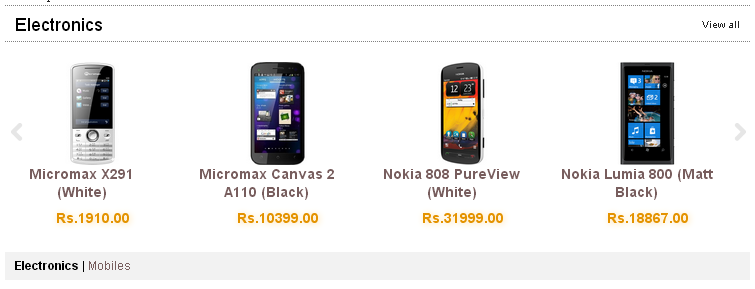
Kinds of widget
- Dynamic (ready-made) widgets fill themselves with products automatically: New Arrivals, Top Discounts, Buy Again, Customers Also Bought, Recently Viewed, Recommended Products, Best Sellers and Similar Products. You only choose where they appear and turn them on.
- Static widgets show what you choose: a Static Products widget (see Product widget) shows products you pick, an HTML widget shows your own text, images, videos or third-party code, and a Newsletter Widget shows a newsletter sign-up box (see Newsletter subscribers).
See your widgets
- Go to Store Manager → Setup → Widgets.
- The widgets page lists all the widgets in your store.
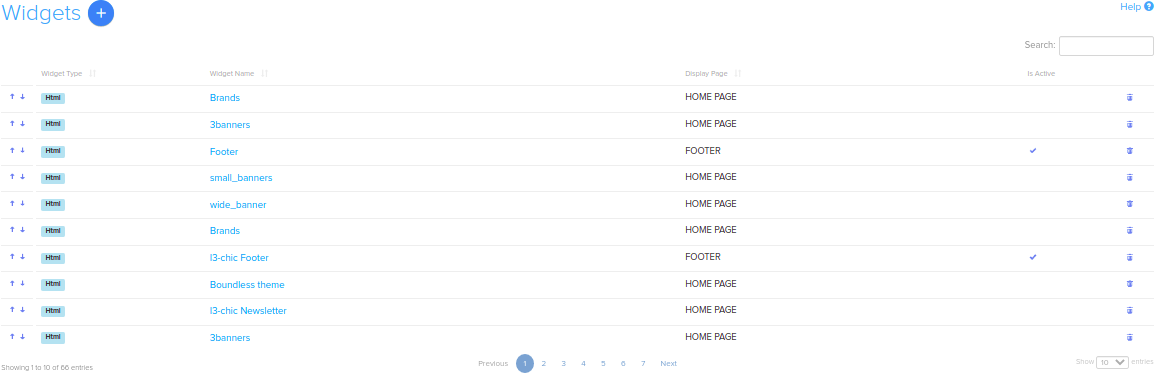
On the widgets list:
- Drag and drop widgets, or use the arrows in the first column, to change the order in which they are shown.
- Click a widget's name to open it and change its settings.
- Display Page shows the page where the widget appears, for example the Home Page or the Product Page.
- Is Active shows whether the widget is turned on or off.
- Click the delete (trash) icon to delete a widget.
Deleting a widget is permanent. To hide a widget for a while, turn off Is Active instead.
Turn on a ready-made widget
- Go to Store Manager → Setup → Widgets.
- Click the widget's name in the list. If it isn't in the list, click Add New Widget and choose the widget type.
- Under Show Widget In, tick the places where the widget should appear.
- Make sure Is Active is turned on.
- Click Save.
Where a widget can appear
The Show Widget In options are: Topbar, Home Page, Product Page, Home Page Left Navigation, Grid Page Left Navigation, My Account Page Left Navigation, Footer and Checkout Delivary Page (spelled this way in Store Manager).
Widget options
- Widget Title: the heading customers see above the widget.
- Sale Ends On: a date for time-limited offers.
- View all link: a link to a page that lists all the widget's products.
- Is Active: turns the widget on or off.
- Preview: see the widget before customers do.
- Mobile footer content: content shown in the footer on mobile.
To change the order of widgets, drag and drop them in the list.
Add your own widget
- Go to Store Manager → Setup → Widgets.
- Click Add New Widget.
- Choose the widget type and set it up. See Product widget or HTML widget for the details.
Edit a widget
Click the widget's name on the widgets list. The widget page has two tabs:
- Widget: the widget's name, the page it appears on, and the links shown under it.
- Widget Products: the products in the widget. Add a product by typing its name or SKU. You can also change the order of the products.
Click Save when you are done.
All widgets
| Widget | What it shows |
|---|---|
| Product widget (Static Products) | Products you choose yourself. |
| HTML widget | Your own content or third-party code. |
| Newsletter Widget | A newsletter sign-up box. See Newsletter subscribers. |
| New arrivals widget | The last 15 products added to your store. |
| Top discounts widget | The 15 products with the biggest discounts. |
| Best seller widget | The products customers buy most often. |
| Buy again widget | Products the customer has bought from you before. |
| Customers also bought widget | Products that other customers also bought. |
| Recently viewed widget | Products the customer looked at recently. |
| Recommended products widget | Recommended products. |
| Similar products widget | Other products from the same type, category and subcategory. |
Related articles
Need more help? Email support@shopnix.io or call +91 8880788813.
No comments to display
No comments to display