
Add and edit pages
Pages are the extra pages of your store, such as About Us, Terms or a Special Offer page. You can add new pages, edit or delete existing ones, and add your own HTML, CSS and JavaScript.
Page types
- HTML: a content page that customers open, written in the page editor. Your store starts with these HTML pages: about-us, faq, help, contact-us, how-it-works, privacy-policy and terms.
- CODE: a code snippet that is added to your store instead of shown as a page. Your store starts with two CODE pages, header and footer, for your own header and footer code, such as tracking scripts.
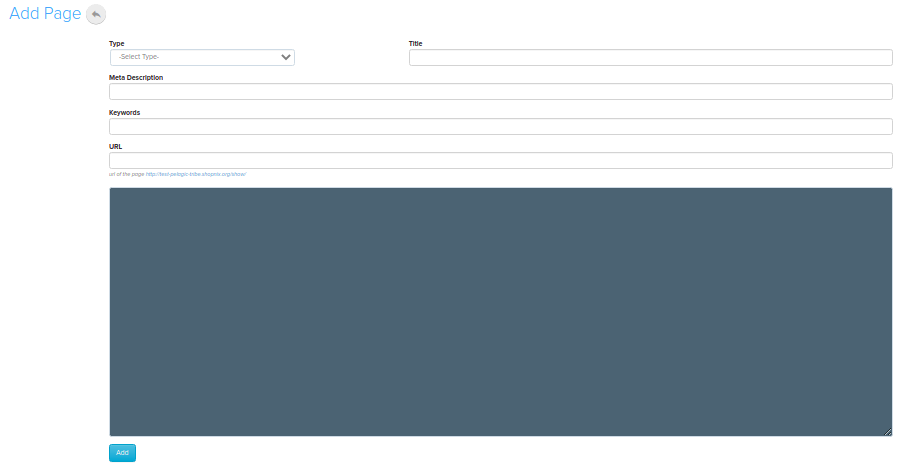
Add a page
- Go to Store Manager → Setup → Pages. The list of your store's pages opens.
- Click Add New Page.
- Select the Type: HTML or CODE.
- Enter a Name and a Title for the page.
- Type your content, or paste your HTML or code, into the editor.
- Optional: enter a Meta Description and Keywords for search engines. You can click Generate with nixi to have nixi AI write the page content and SEO details for you.
- Click the save button below the editor to add the page.
Edit a page
- Go to Store Manager → Setup → Pages.
- In the Name column, click the page you want to change, for example Special Offer.
- Make your changes.
- Click Save.
For more on the page editor, such as adding images and videos, see Edit an existing static page.
Find a page
- Go to Store Manager → Setup → Pages.
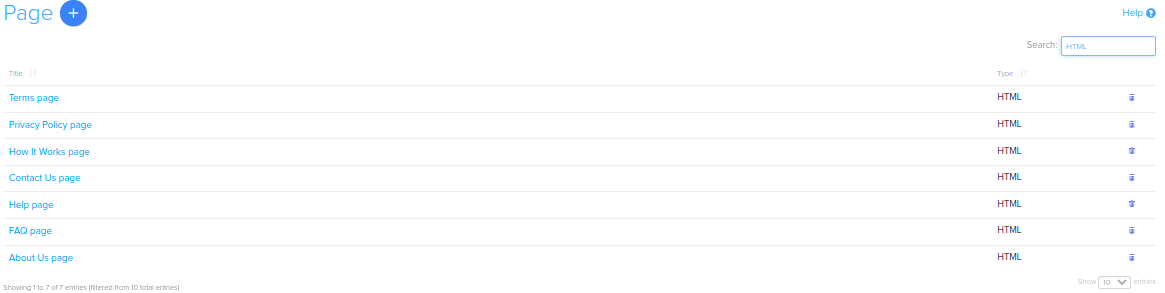
- In the Show Pages With section, choose what to search by. For example, select HTML as the type to list all HTML pages.
- Click the search button.
Delete a page
- Go to Store Manager → Setup → Pages.
- Click the delete icon on the page's row, for example the Terms page.
- Confirm in the pop-up.
Add CSS or JavaScript to every page
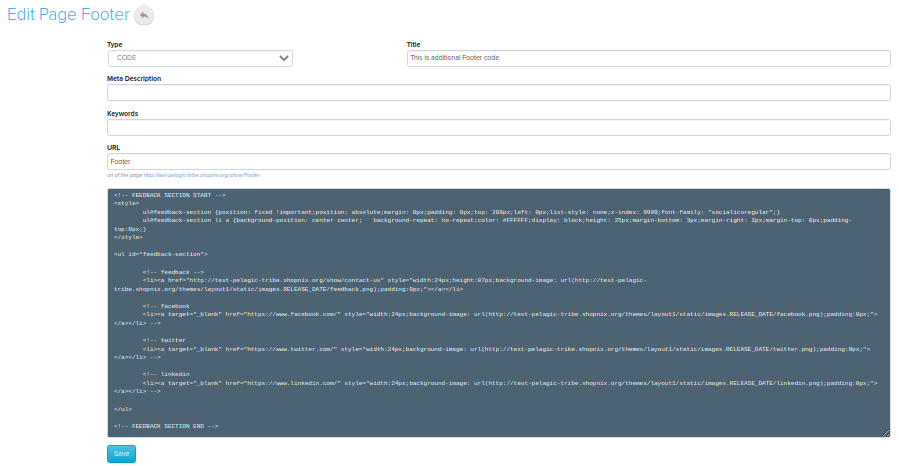
The pages list includes a Header and a Footer page. These are CODE pages. Code you add there runs on your whole store. There is no separate CSS editor in Store Manager, so use these pages for your own CSS and JavaScript.
- Go to Store Manager → Setup → Pages.
- Click Header or Footer.
- Add your CSS inside
<style></style>tags, or your JavaScript inside<script></script>tags. - Click Save.
See Add custom CSS and JavaScript for more detail.
Related articles
Need more help? Email support@shopnix.io or call +91 8880788813.
No comments to display
No comments to display