
Choose a theme
A theme sets the overall look of your store: layout, menus, grids and image sizes. You can preview any theme before you apply it, and change it later.
Before you start
- Each theme uses different image sizes. Choose your theme before you upload product images and banners, so your images fit.
Choose and apply a theme
- Go to Store Manager → Setup → Theme.
- Open the Theme tab (Choose Your Theme). It lists all themes, including responsive themes and themes for each business model.
- Choose your business model, for example Grocery, and then a theme, for example Grocery 3.
- Click View to see how your store will look with that theme.
- When you are happy with it, click Apply Theme.
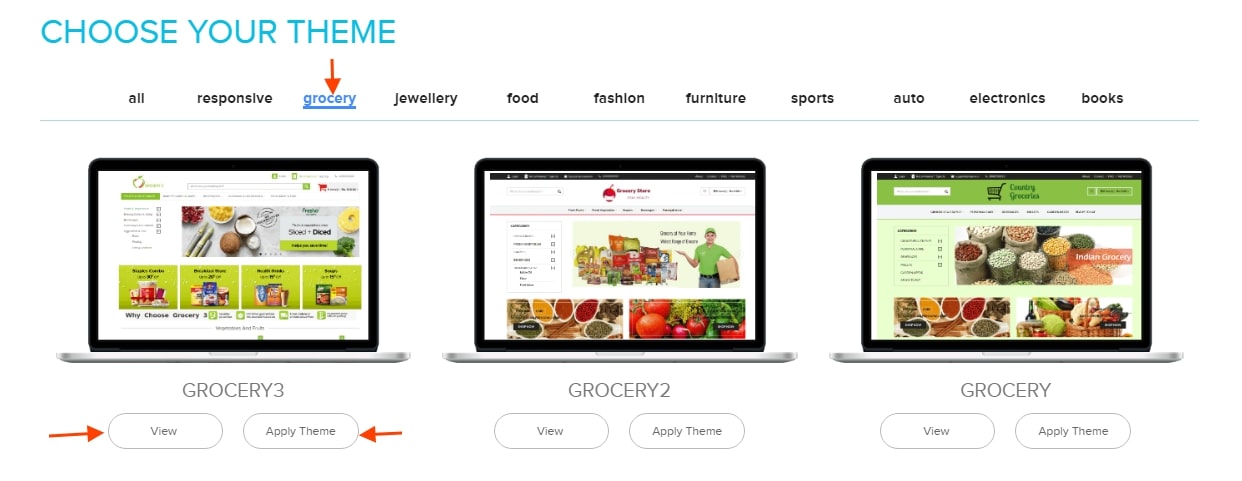
The other tabs on this screen (Global, Home Page, Product Page and Product Grid/List Page) let you customise the theme you applied. See Customise your theme.
Standard themes
Shopnix has built-in (standard) themes designed for different kinds of shopping. Two examples:
- Azkaban: suits stores where customers browse many items but buy only one or two, for example clothing or jewellery.
- Burrows: suits items bought in groups, for example groceries. Customers browse, quickly add several items to the cart and then check out.
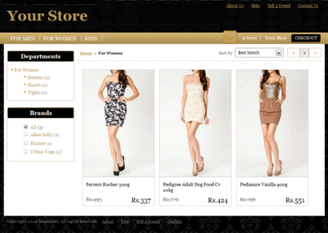
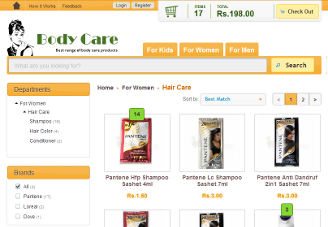
The theme names in your Store Manager may differ from the examples above. Use View to preview any theme before you apply it. Paid themes are available on selected plans. See Upgrade or renew your plan.
What happens next
All Shopnix themes work on most modern web browsers. After you apply a theme, you can pick a colour scheme, upload your logo and add banners. If none of the standard themes suits your store, you can ask us about a fully custom theme.
Related articles
Need more help? Email support@shopnix.io or call +91 8880788813.
No comments to display
No comments to display