
Add custom CSS and JavaScript
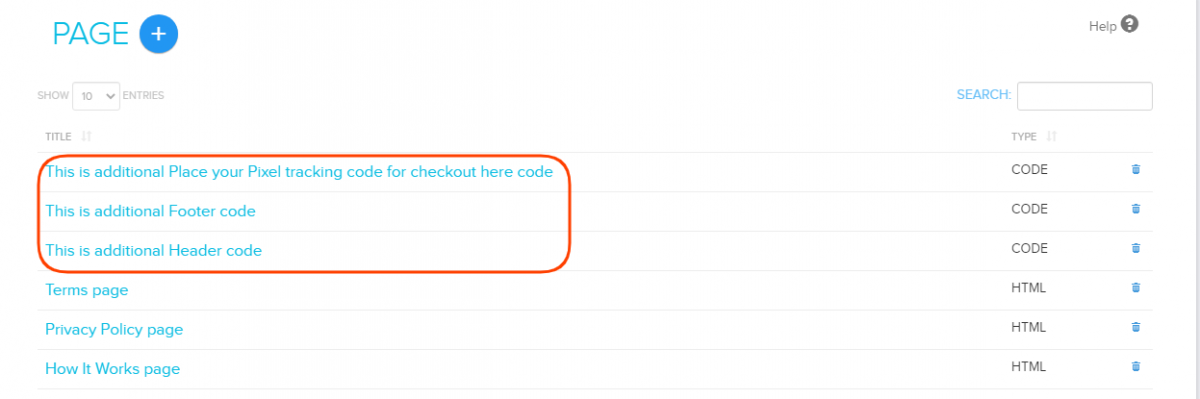
You can change how your store looks and works by adding your own CSS and JavaScript. You add the code to your store's Header or Footer page, and it runs on every page of your store. These are CODE pages in Setup → Pages. Store Manager has no separate CSS editor, so all custom code goes here.
Custom code can break your store's layout or stop parts of it working. Make one change at a time, then check your store on both a computer and a phone. Keep a copy of the existing code before you change it, so you can put it back.
Add CSS or JavaScript
- Go to Store Manager → Setup → Pages.
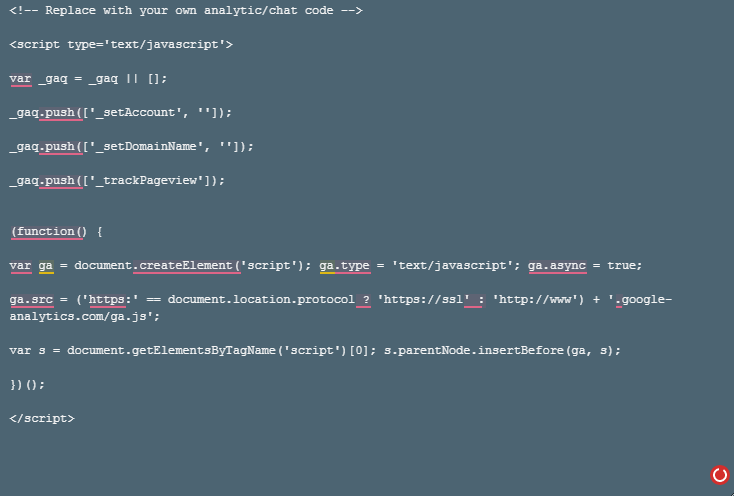
- Click Header or Footer. The page opens with example code already in place for reference.
- Add your CSS inside
<style></style>tags, or your JavaScript inside<script></script>tags. - Click Save.
Header or footer?
- Code in the Header runs first. Code in the Footer runs later.
- Use the Header for external scripts, such as an online chat tool, Google Analytics or a Facebook Pixel. Shopnix has no separate setting for tracking scripts.
- You can write new styles, or change existing parts of your store with CSS or JavaScript.
Edit existing code
- Go to Store Manager → Setup → Pages.
- Click Header or Footer, whichever holds the code.
- Change the code and click Save.
If you add a lot of code, add comments that explain what each part does. This makes it easier to find and change later.
Related articles
Need more help? Email support@shopnix.io or call +91 8880788813.
No comments to display
No comments to display