
Product widget
A product widget (the Static Products widget type) shows products you choose yourself, for example on your home page or product page. Use it to promote new launches or a special offer, for example a "Special Offer" block with five products.
Create a product widget
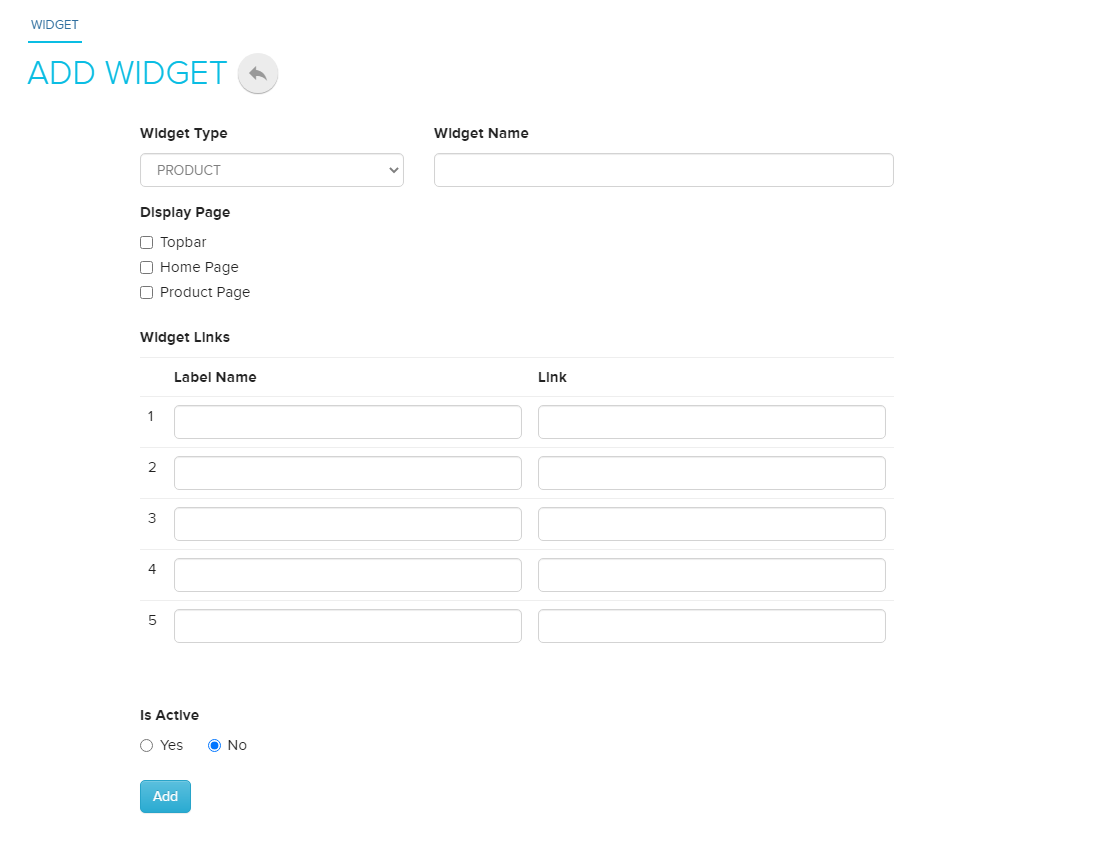
- Go to Store Manager → Setup → Widgets.
- Click Add New Widget.
- Choose Static Products as the widget type.
- Enter a Widget Title, for example
Special Offer. - Under Show Widget In, choose where to show the widget, for example Home Page or Product Page. See Widgets for all the places a widget can appear.
- Optional: for a time-limited offer, set Sale Ends On.
- Optional: enter a label name and a link. The label appears under the widget and takes customers to the link.
- Click Add. A new Widget Products tab appears.
- Open the Widget Products tab and add products by typing their name or SKU. You can also change the order of the products.
Edit a product widget
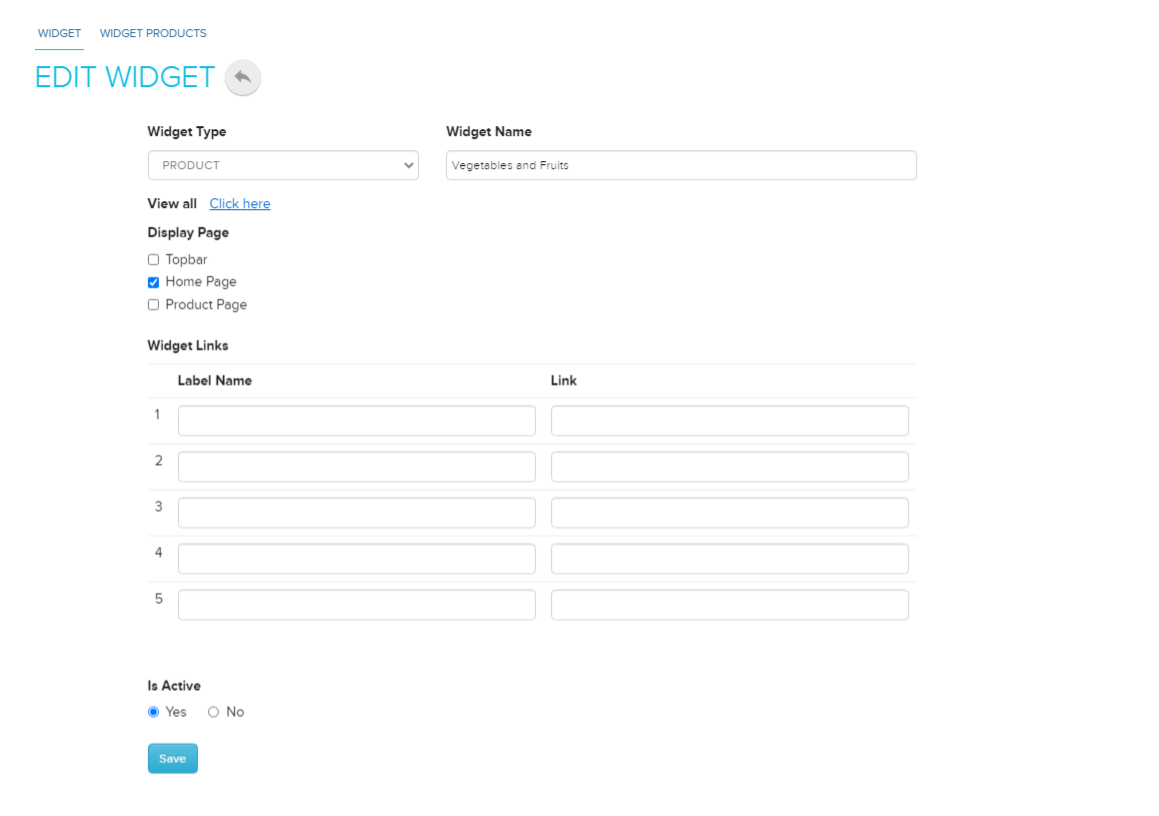
You can add, change or remove the products, labels and links of an existing widget.
- Go to Store Manager → Setup → Widgets.
- Click the widget's name, for example Special Offer.
- Make your changes, for example add a new label and link.
- Click Save.
What happens next
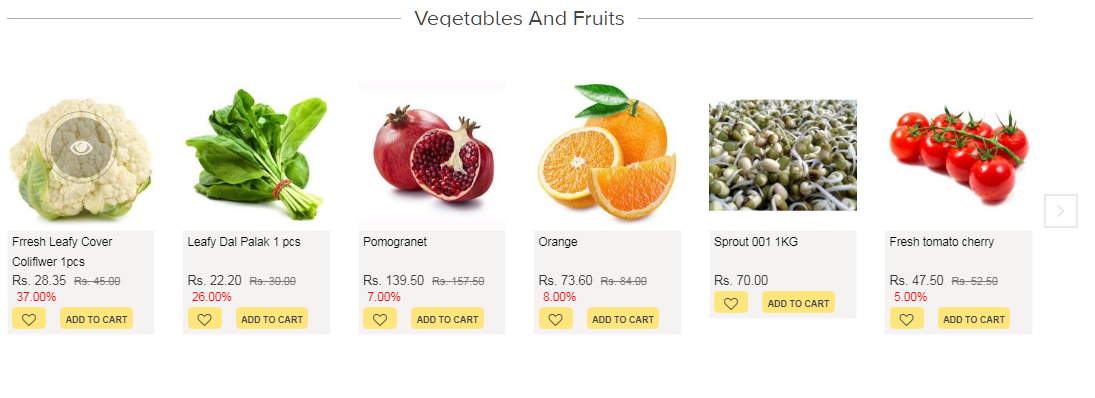
The widget appears on the page you chose, with its products and any labels and links under it.
Related articles
Need more help? Email support@shopnix.io or call +91 8880788813.
No comments to display
No comments to display