
Customise your theme
After you apply a theme, you can change its font, background colour and image, and switch between a horizontal and a vertical menu. All of these are on the Global tab of the Theme screen.
Theme screen tabs
Store Manager → Setup → Theme has these tabs:
- Theme: choose and apply a theme. See Choose a theme.
- Global: Vertical Menu, Theme Font, Theme Background Color, Theme Background Image and Product Image Label.
- Home Page: your home page banners. See Add homepage banners.
- Product Page and Product Grid/List Page: image sizes and zoom. See Set product image size and zoom.
Change the background colour or image
- Go to Store Manager → Setup → Theme.
- Open the Global tab.
- To change the font, choose a Theme Font.
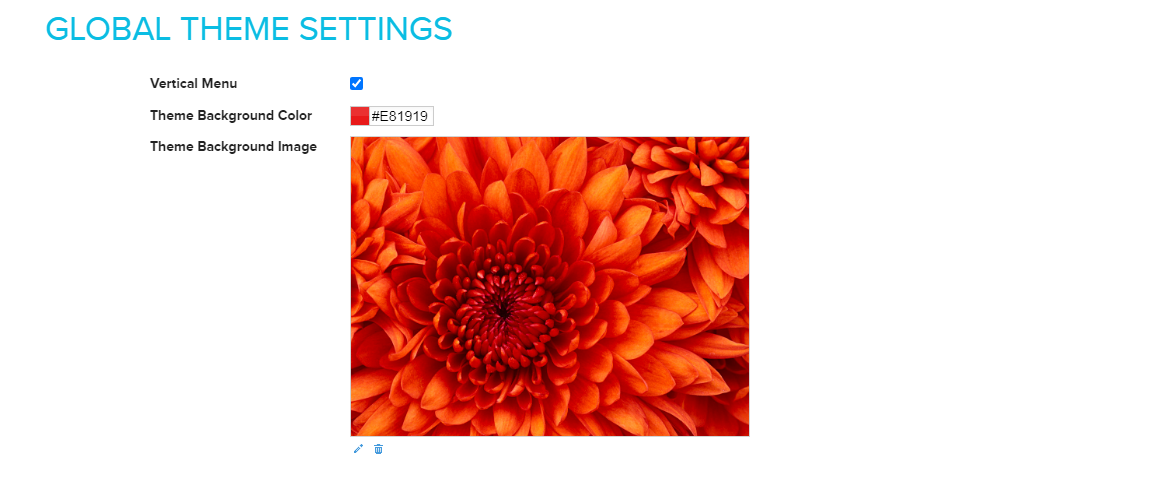
- To change the background colour, click Theme Background Color and pick a colour.
- To upload a background image, click the image under Theme Background Image. A pop-up opens where you can upload a new image from your computer.
- To edit the current image, click the edit icon. An image editor opens.
- To remove the current image, click the delete icon.
Use a vertical menu
By default, your store shows a horizontal menu. You can switch to a vertical menu instead.
- Go to Store Manager → Setup → Theme.
- Open the Global tab.
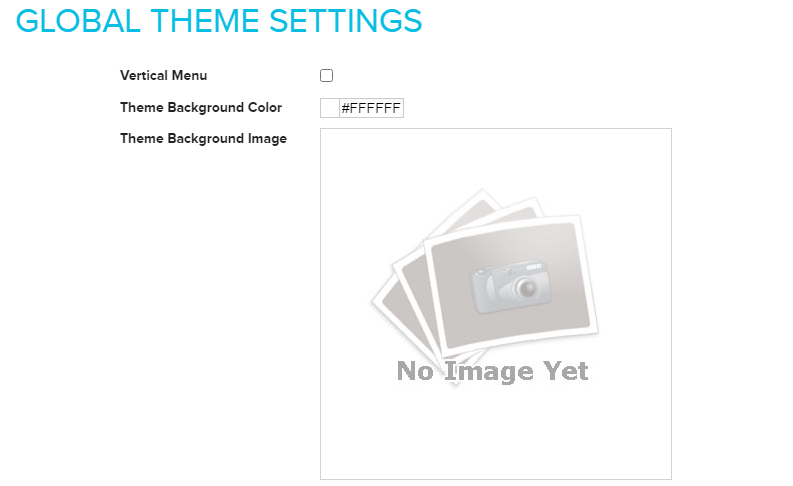
- Turn on Vertical Menu. This turns on the vertical menu and turns off the horizontal menu.
- Save your changes.
What happens next
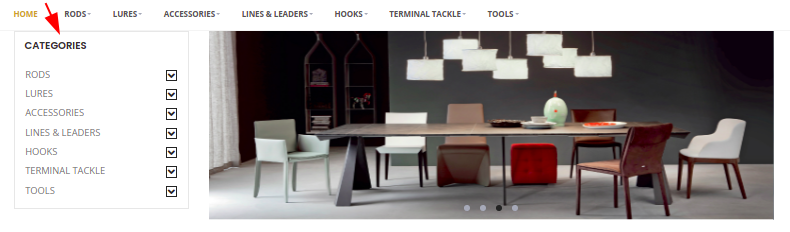
Your changes show in your store. With the vertical menu turned on, the menu appears down the side of the page instead of across the top.
Related articles
Need more help? Email support@shopnix.io or call +91 8880788813.
No comments to display
No comments to display