
Set product image size and zoom
You can choose how large product images appear in your store's product grid and list pages, and how customers zoom in on images on the product page.
Set the product image size
- Go to Store Manager → Setup → Theme.
- Open the Product Grid/List Page tab.
- Under Image Dimensions, increase or decrease the image width and height.
- Save your changes.
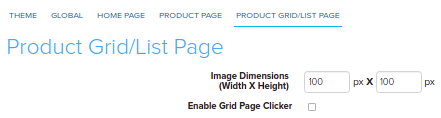
The new size is used for product images on both the grid page and the list page of your store. The same tab also has Enable Grid Page Clicker and Banner Image Dimensions (the size of category banners on grid pages). The Product Page tab has its own Image Dimensions for the main product image.
Turn product zoom on or off
Product zoom shows a high-resolution version of the product image when a customer moves the cursor over it. This helps customers see the product in detail.
- Go to Store Manager → Setup → Theme.
- Open the Product Page tab.
- Use the Product Zoom option to turn zoom on or off.
- In the Product Zoom Type drop-down, choose Window, Inner or Lens.
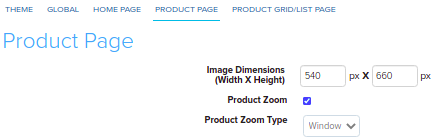
Product zoom is turned off on some themes. If zoom doesn't work on your store after you turn it on, your theme may not support it.
Zoom types
| Zoom type | What the customer sees |
|---|---|
| Window | The zoomed image opens in a separate window next to the product image, at the size you choose. |
| Inner | The zoomed image shows inside the product image box, so it doesn't cover other parts of the page. |
| Lens | A circle over the original image shows the zoomed view, like a magnifying glass. |

Related articles
Need more help? Email support@shopnix.io or call +91 8880788813.
No comments to display
No comments to display