
Add product images
Add several images to each product, such as the front, back and side views, different colours or close-ups of details. You can edit, delete and reorder images, or upload images for many products at once.
Add images to a product
- Go to Store Manager → Products → Add a Product, or open an existing product.
- In the image upload area, upload the first image.
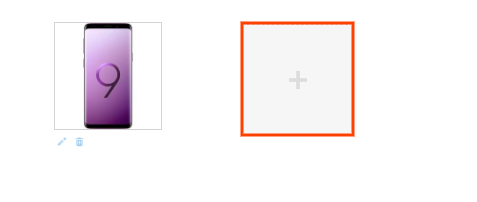
- Another upload option appears. Use it to add more images.
- Click Save.
Edit, delete or reorder images
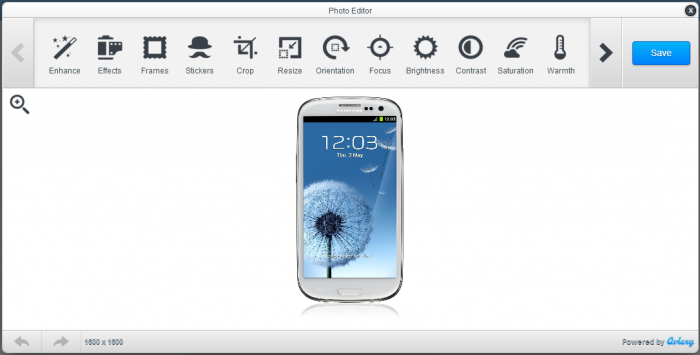
- Edit: click the edit icon on an image. A photo editor opens. You can adjust brightness, resize, add effects or frames, crop and change the orientation.
- Delete: click the delete icon on an image.
- Reorder: click an image and drag it to a new position.
- Remove background: let nixi AI remove the background from a product or variant image. See Write descriptions and edit images with nixi AI.
Upload images for many products
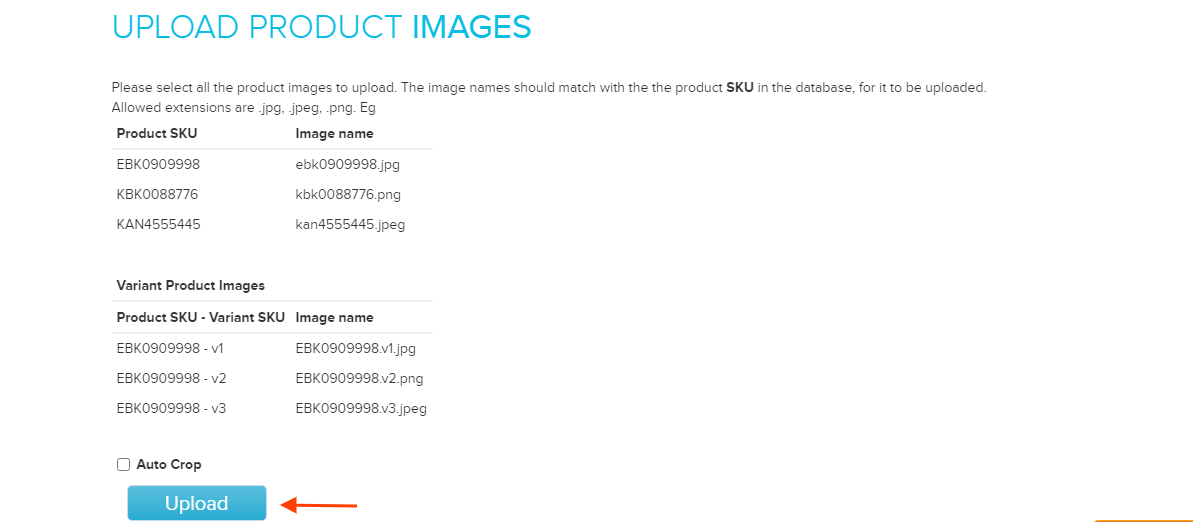
- Name each image file with the SKU of its product. For example, the image for SKU
PROD0500is namedPROD0500.jpg. - Go to Store Manager → Products → Upload Product Images.
- Click Upload and select all the images.
- Click Open. A status list shows whether each image uploaded.
The file name must match the product SKU. Images with any other name are not accepted.
Related articles
- Add a product
- Upload products in bulk
- Set product image size and zoom
- Add product variants (size, colour and more)
- Write descriptions and edit images with nixi AI
Need more help? Email support@shopnix.io or call +91 8880788813.
No comments to display
No comments to display