
Edit products in bulk
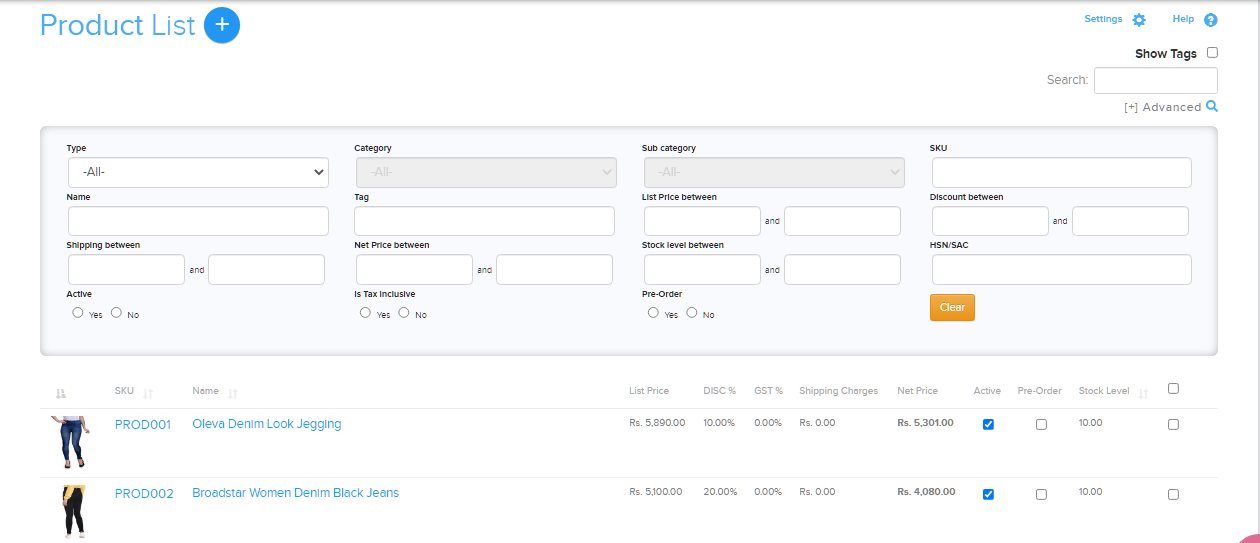
Change the same field on many products at once from the product list. For example, give a 10% discount on all your jeans in one go instead of editing each product.
Edit products in bulk
- Go to Store Manager → Products → Manage Products.
- Use the search options to list the products you want to change. For example, Type: Men, Category: Casuals, Sub Category: Jeans.
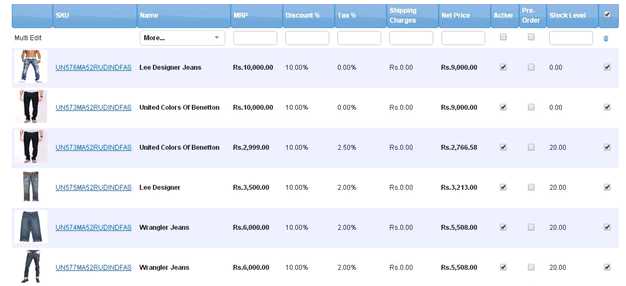
- Click the multi-edit option above the product list. An extra row appears below it.
- In the extra row, enter the new value under the column you want to change. For a 10% discount, enter
10under Discount %. Don't type the % sign. - Click outside the box. A pop-up asks you to confirm.
- Click OK to apply the change to all the listed products, or Cancel to stop.

What happens next
The listed products update straight away. In the example, the discount on every pair of jeans changes from 0.00% to 10.00%.
Other bulk actions
- To add or remove tags on selected products, see Product tags.
- To delete products, tick them in the list and click the delete icon.
Related articles
Need more help? Email support@shopnix.io or call +91 8880788813.
No comments to display
No comments to display