
Find and edit products
Find a product in your catalogue and change its details, tags or Buy Now settings. You can edit products one at a time, several at once, or with a CSV file.
Find a product
- Go to Store Manager → Products → Manage Products.
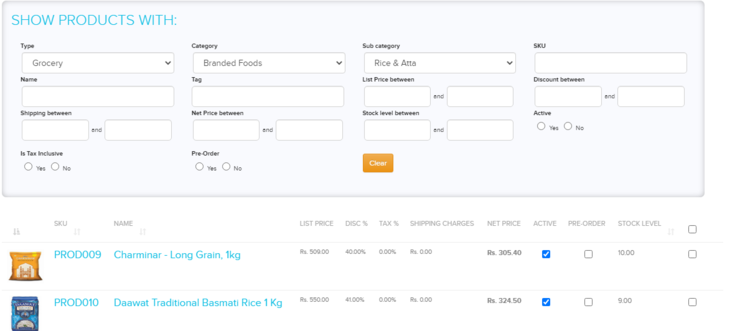
- In the Show Products with section, choose a Type, Category and Sub Category. For example, Grocery → Branded Foods → Rice and Atta.
- Click the search button. The matching products are listed.
You can also search by name, price, discount, shipping, net price or stock range, HSN/SAC, warranty code, and whether the product is active, tax inclusive or on pre-order. The list shows each product's name, list price, shipping charges, net price, stock level, and whether it is active, on pre-order or has variants.
Edit a product
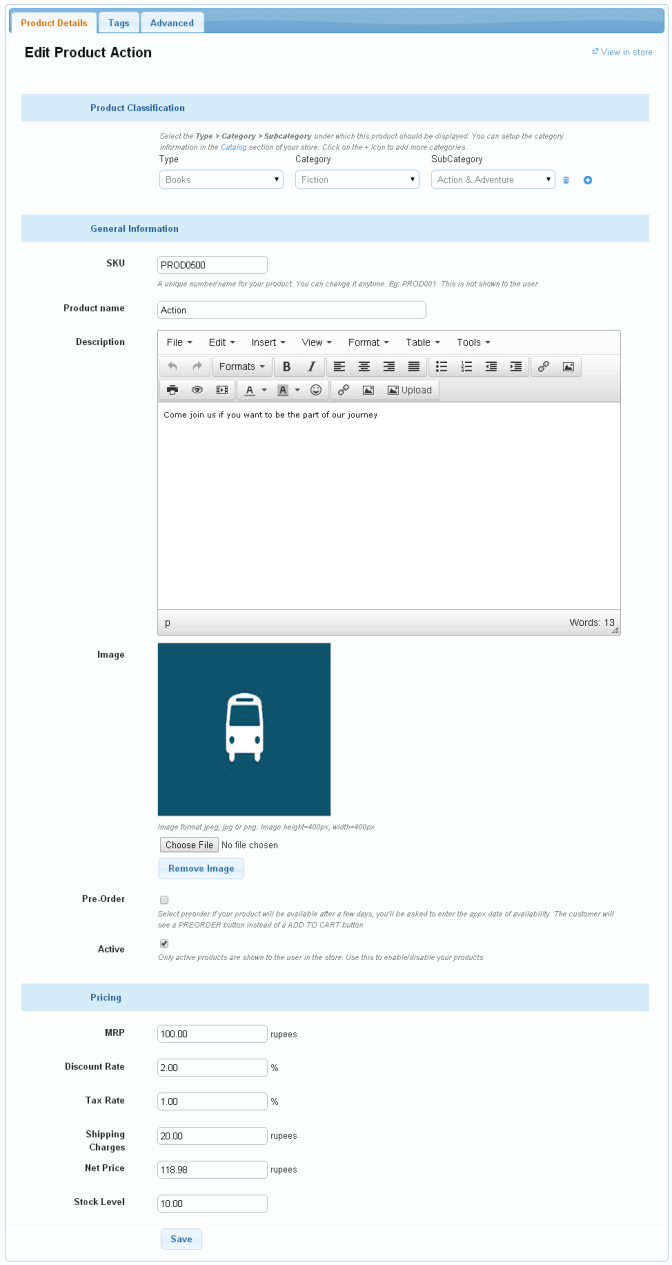
- In the product list, click the product's SKU, for example
PROD0500. - Make your changes in one of the tabs (see below).
- Click Save.
| Tab | What you can change |
|---|---|
| Product Details | The product information you entered when you added it, such as name, description and price. |
| Tags | Tags shown on the product page, used in filters and in search. See Product tags. |
| Advanced | The Buy Now button code. See Add a product. |
| Google Merchant Center | Details Google uses for shopping listings: GTIN, MPN, Condition (new, refurbished or used) and Shipping Weight. |
| SEO | Meta title, description, keywords and a custom URL. Shown when SEO is on for your store. See Product SEO: titles, descriptions and URLs. |
Edit many products at once
- To change the same field on many products in the product list, see Edit products in bulk.
- To add or update products with a spreadsheet, see Upload products in bulk.
- To delete products, tick them in the list and click the delete icon.
Related articles
- Add a product
- Edit products in bulk
- Set product prices
- Add product images
- Product SEO: titles, descriptions and URLs
- Write descriptions and edit images with nixi AI
Need more help? Email support@shopnix.io or call +91 8880788813.
No comments to display
No comments to display