
Track inventory and stock
Shopnix can keep your stock levels up to date for you. With Auto Reduce Stock Level turned on, stock goes down when an order is processed and back up when an order is cancelled, rejected or returned. This helps you see which items sell fast and need reordering, and which sell slowly.
Before you start
- Plan how to organise your products into types, categories and subcategories. See Types, categories and subcategories.
Turn on stock tracking for a product
Auto Reduce Stock Level is turned on by default when you create a store. To check it or turn it on:
- Go to Store Manager → Products → Manage Products and click the product's SKU.
- At the end of the page, tick Auto Reduce Stock Level.
- Click Save.
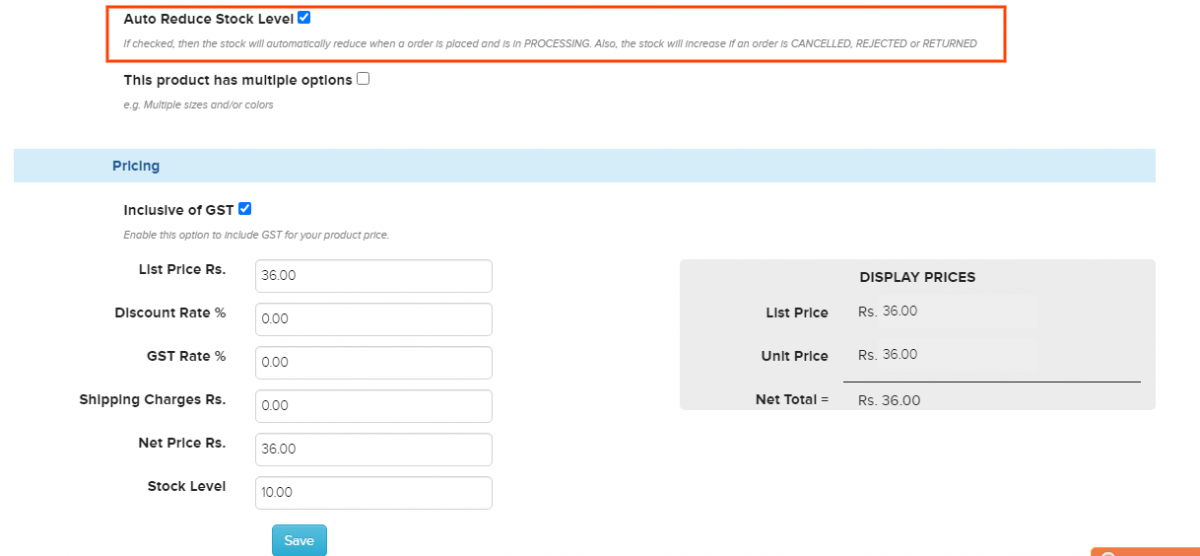
When you upload products with a CSV file, use the IS REDUCE STOCK column. Enter 1 to turn it on or 0 to turn it off. See Upload products in bulk.
How stock changes
| Order status changes to | Stock level |
|---|---|
| PROCESSING | Goes down by the quantity ordered. |
| CANCELLED, REJECTED or RETURNED | Goes back up by the quantity ordered. |
Example
You sell grapes (1 kg) and the stock level is 10. A customer orders 1 kg.
- You change the order status to PROCESSING. The stock level drops to 9.
- Later the customer returns the order and you change the status to RETURNED. The stock level goes back to 10.
Both changes also show in the stock report.

Low stock alerts
Your store dashboard lists products that are running low, marked Critical or Warning, so you know what to reorder.
When stock runs out
If a product's stock level is 0, your store shows it as out of stock. Customers can ask to be told when it is back. See Back-in-stock notifications.
Related articles
Need more help? Email support@shopnix.io or call +91 8880788813.
No comments to display
No comments to display