
Stock report
The stock report shows the stock you have for your products. Use it to check your stock levels so you can reorder before products run out.
Open the report
- Go to Store Manager → Reports → Stock Report.
- To see all your stock, click Generate Report.
- To see only some products, fill in the filters first, then click Generate Report.
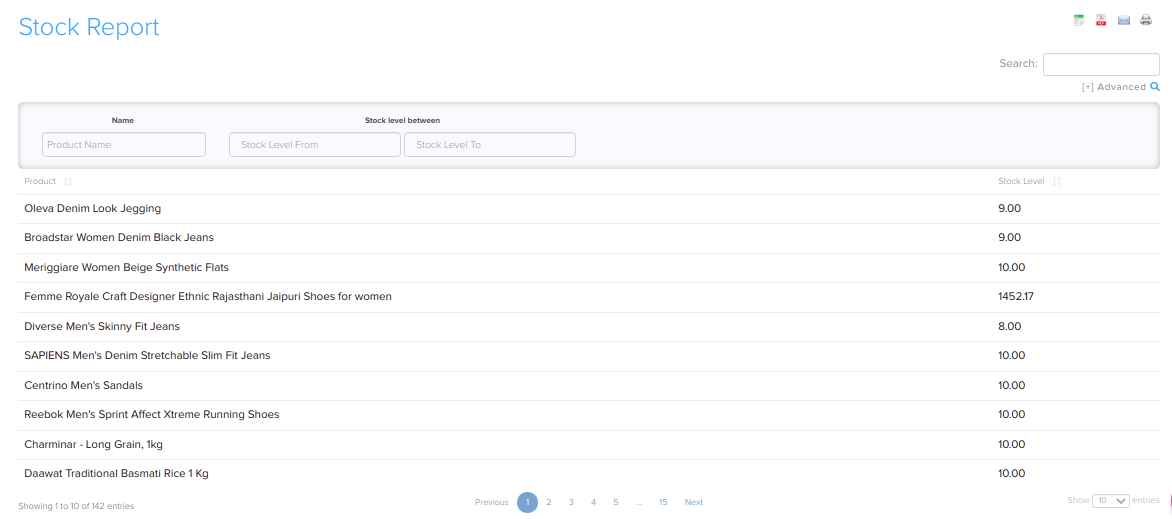
Filters
Use the filters at the top of the report page to narrow the stock list. You can filter by product Name and by a range of stock levels, for example products with 0 to 5 in stock.

Export or share
- Download the report in Microsoft Excel format
- Download the report in PDF format
- Mail the report to anyone
- Print the report

Related articles
- Reports: which one to use
- Track inventory and stock
- Back-in-stock notifications
- Your store dashboard
Need more help? Email support@shopnix.io or call +91 8880788813.
No comments to display
No comments to display