
Your store dashboard
The dashboard gives you a quick view of how your store is doing: revenue, orders, customers and visitors, your recent orders and products that are running low on stock. It's the first page you see when you log in to Store Manager.
Open the dashboard
- Log in to Store Manager at
YOUR-STORE.com/admin. - The dashboard opens automatically. To come back to it later, click Dashboard in the menu.
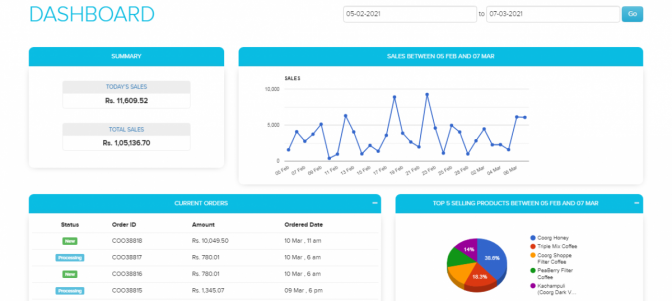
Change the date range
The figures on the dashboard are for the date range you choose. Pick one of these:
- Today or Yesterday
- Last 7 days, Last 15 days or Last 30 days
- This month
- Last 3 months, Last 6 months or Last 12 months
- This year or Last year
- Custom: enter your own start and end dates
The dashboard figures update to show only that period.
What the dashboard shows
| Section | What it shows |
|---|---|
| Revenue | The value of your sales in the date range. |
| Orders | The number of orders placed in the date range. |
| Customers | The number of customers in the date range. |
| Visitors | The number of visits to your store in the date range. |
| AOV | Average order value: the average amount of an order. |
| Conversion Rate | How many of your visitors went on to place an order. |
| Recent Orders | Your latest orders. |
| Low Stock Alerts | Products that are running low, marked Critical or Warning, so you can restock in time. |
Example
You choose Last 7 days. Your store had 8 orders worth ₹12,000 in that week. The dashboard shows Revenue ₹12,000, Orders 8 and AOV ₹1,500 (₹12,000 ÷ 8). A kurti appears under Low Stock Alerts as Critical, so you add more stock before it sells out.
Related articles
- Reports: which one to use
- How orders work
- Track inventory and stock
- Get desktop alerts for new orders
- Log in to Store Manager and find your way around
Need more help? Email support@shopnix.io or call +91 8880788813.
No comments to display
No comments to display