
Set up your store with the onboarding wizard
The onboarding wizard sets up the basics of your store while you create it. In a few screens you add your store details and logo, choose a theme and add your first product.
While the wizard is on, you see the onboarding page when you log in, instead of the normal Store Manager menu. When you finish the wizard, the full menu appears.
Start the wizard
- Go to https://shopnix.io and click Create Store.
- In the pop-up window, enter your Store Name, E-mail Address, Password and mobile number, then click Start.
- Enter the OTP sent to your mobile number and click Lets Go.
- Wait a few moments while Shopnix creates your store.
Set up your store
- Add your store details. Enter the store name, store title, support email and support phone. Upload your logo and favicon (see the image sizes below).
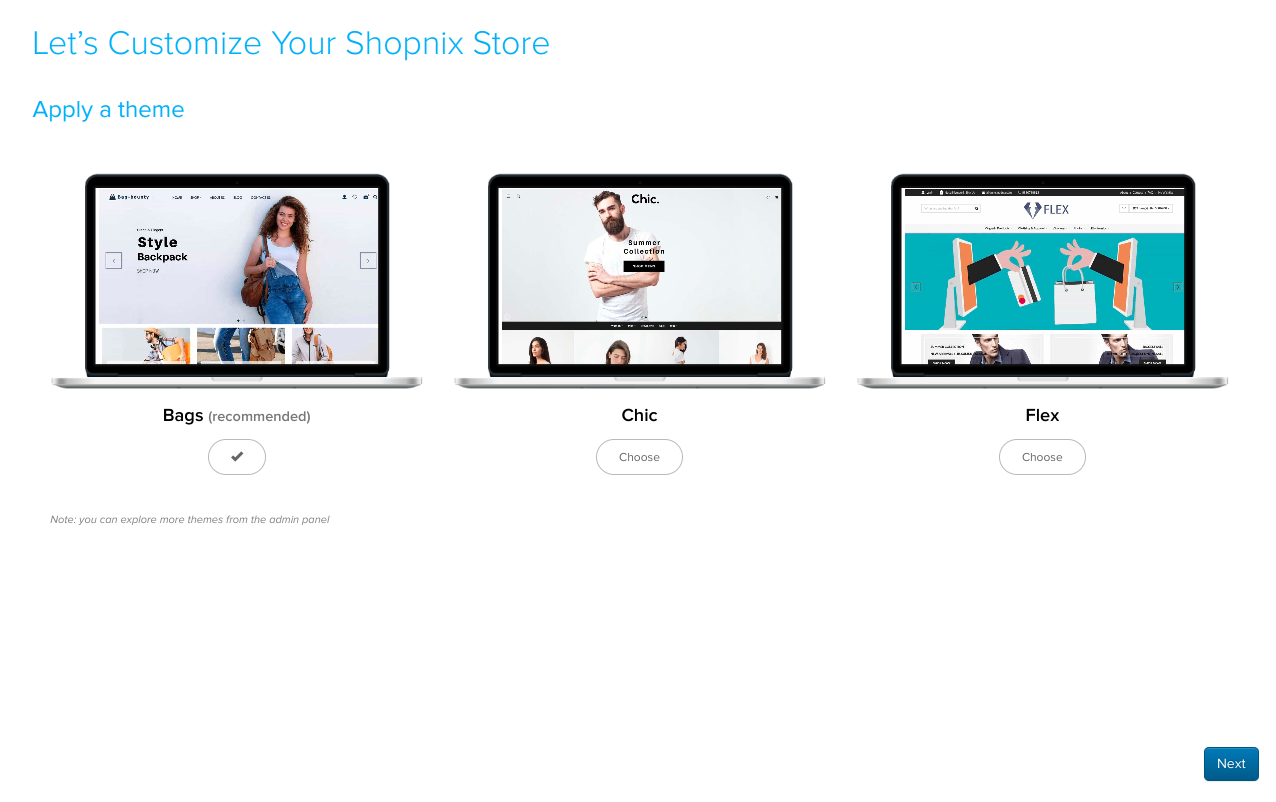
- Choose a theme. Each theme gives your store a different look. One theme is selected by default. Pick the one you want and apply it.
- Add your first product. Choose a type, category and subcategory for it, for example type Clothing, category Women, subcategory Kurtis. Then enter the product name, SKU code, description and images, and the pricing: list price, discount %, net price, shipping charges and stock level.
| Image | Format | Size |
|---|---|---|
| Store logo | JPG, PNG or WEBP | 300px wide × 100px high |
| Favicon (the small icon in the browser tab) | ICO only | 32px × 32px |
What happens next
When you finish, Shopnix takes you to the dashboard in Store Manager. Click View Store in the top-right corner to see your new store.
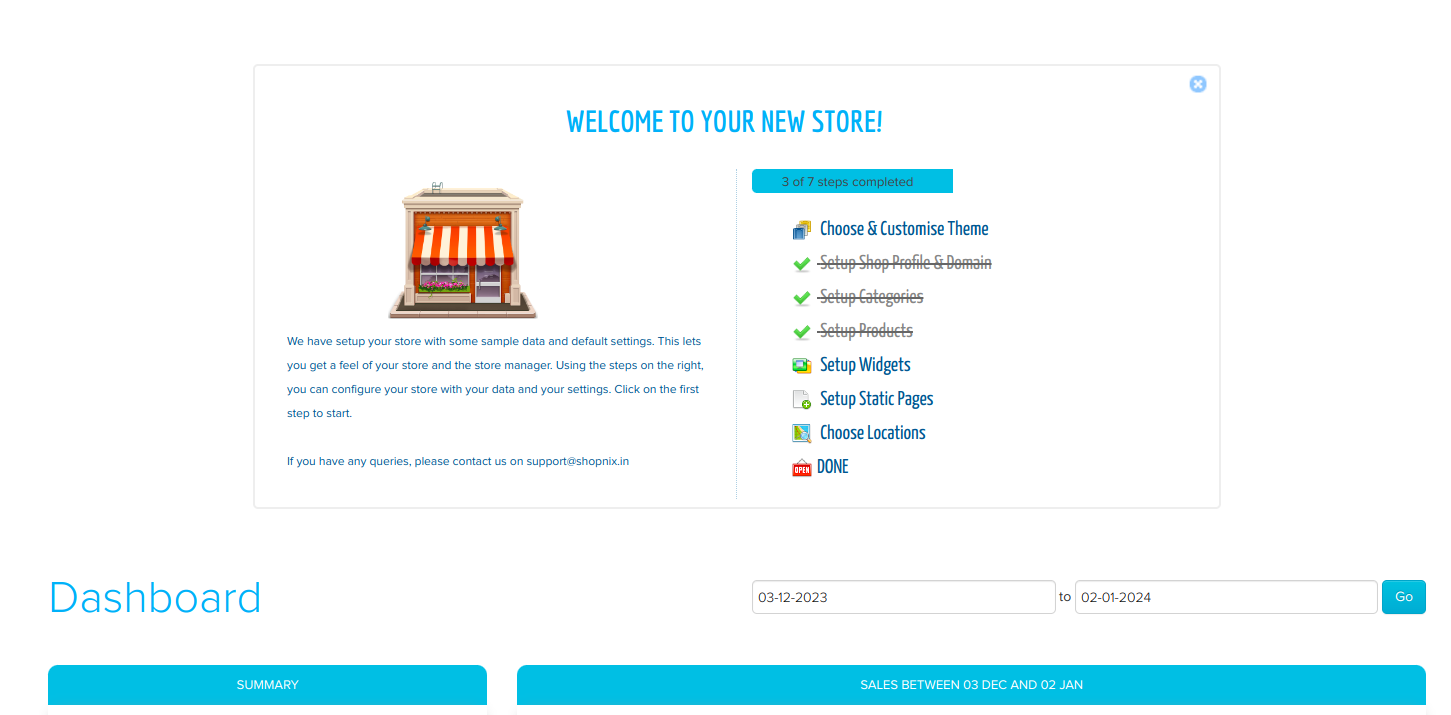
You can change everything you set in the wizard later from Store Manager.
Related articles
- Choose a theme
- Types, categories and subcategories
- Add a product
- Upload your logo
- Set product prices
- Launch checklist: get your store ready to sell
Need more help? Email support@shopnix.io or call +91 8880788813.
No comments to display
No comments to display