
Add a product
Add products to your catalogue so customers can find and buy them. Each product belongs to a type, category and subcategory, and has its own SKU, description, images and price.
Before you start
- Create the type, category and subcategory the product belongs to. See Types, categories and subcategories.
- Decide on a unique SKU (stock keeping unit) for the product, for example
BOOK-0500. - Your plan sets how many products you can add: 50, 1,000, 8,000 or 40,000. See Upgrade or renew your plan.
Add a product
- Go to Store Manager → Products → Add a Product.
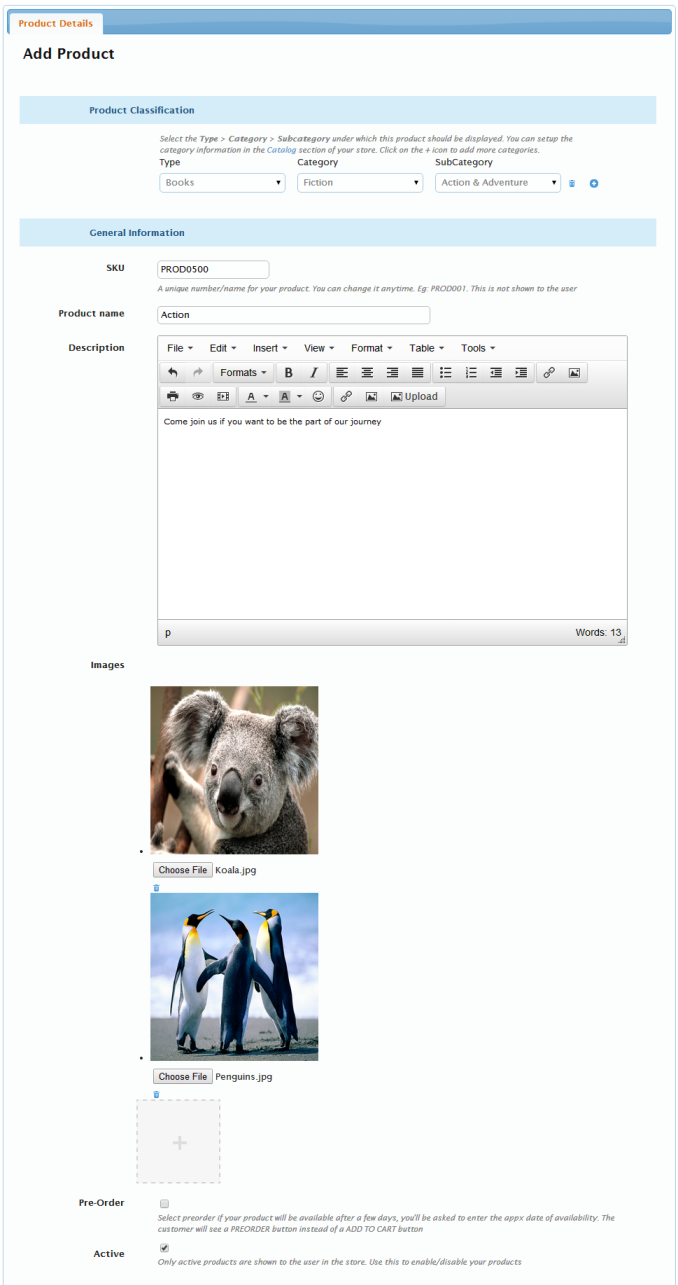
- Under Product Classification, select the Type, Category and SubCategory for the product.
- To show the same product in more than one category, click the + icon next to the classification and select another type, category and subcategory. For example, add a pair of jeans to both the Men and Women types.
- Under General Information, enter the SKU, product name and description, and add an image. If HSN codes are turned on in your tax settings, also enter the HSN/SAC code. To have the description written for you, click Generate with nixi. See Write descriptions and edit images with nixi AI.
- Choose whether the product is available for pre-order, and whether it is active (visible in your store).
- Under Pricing, enter the product's price. See Set product prices for all pricing fields.
- Enter the Stock Level, and the Minimum Order Quantity if customers must buy more than one. Tick Auto Reduce Stock Level to update stock automatically. See Track inventory and stock.
- Click Save.
Example
You sell books and want to add a new adventure novel:
| Field | Value |
|---|---|
| Type | Books |
| Category | Fiction |
| SubCategory | Action and Adventure |
| SKU | PROD0500 |
Fill in the name, description and price, then click Save.
More product options
- This product has multiple options: sell the product in different sizes, colours or materials. See Add product variants (size, colour and more).
- Digital Product: sell a file customers download. See Sell digital products.
- This product has warranty: needs the Warranty app. See Offer product warranties.
- After you save, the product also has Tags, Advanced, Google Merchant Center and SEO tabs. See Find and edit products.
Add a Buy Now button to other websites
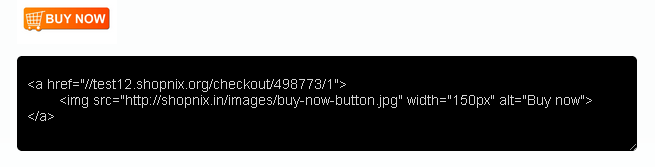
Each product has a Buy Now button code. Paste this code into your own website, an email or your Facebook page. When customers click the button, they go straight to checkout in your store with this product.
- Open the product in Store Manager → Products.
- Open the Advanced tab and copy the Buy Now button code.
- Paste the code where you want the button to appear.
Related articles
- Set product prices
- Add product images
- Add product variants (size, colour and more)
- Upload products in bulk
- Find and edit products
- Sell digital products
- Product SEO: titles, descriptions and URLs
Need more help? Email support@shopnix.io or call +91 8880788813.
No comments to display
No comments to display