
Offer product warranties
The warranty app lets you create warranty plans for your products, link them to products and serial numbers, and see the warranty registrations customers submit.
Turn on the warranty app
- Go to Store Manager → Setup → Apps. The Shop Apps page opens.
- Find Warranty for products and turn the toggle to Enabled.
- Click the settings (gear) icon next to it.
If you don't see the warranty app in Store Manager → Setup → Apps, contact Shopnix support to turn it on for your store.
Once the app is on, you also find the warranty page at Store Manager → Customers → Warranty. It has these tabs:
- Warranty Types: the warranty plans you offer.
- Pending: new registrations waiting for you to Approve or Decline.
- Registrations: the warranty registrations customers submit.
- Settings: the link to your warranty Terms & Conditions page and the places where your products are sold, which customers choose from when they register.
Create a warranty type
- On the Warranty Types tab, click +.
- Fill in the warranty details (see the table below), then save and go to the next step.
- Choose the products the warranty covers. Filter by category or subcategory, or use the search bar. To cover every product in the list, tick Select All. To cover only some products, tick each one, for example "Mysore Pak 500g". Then save and go to the next step.
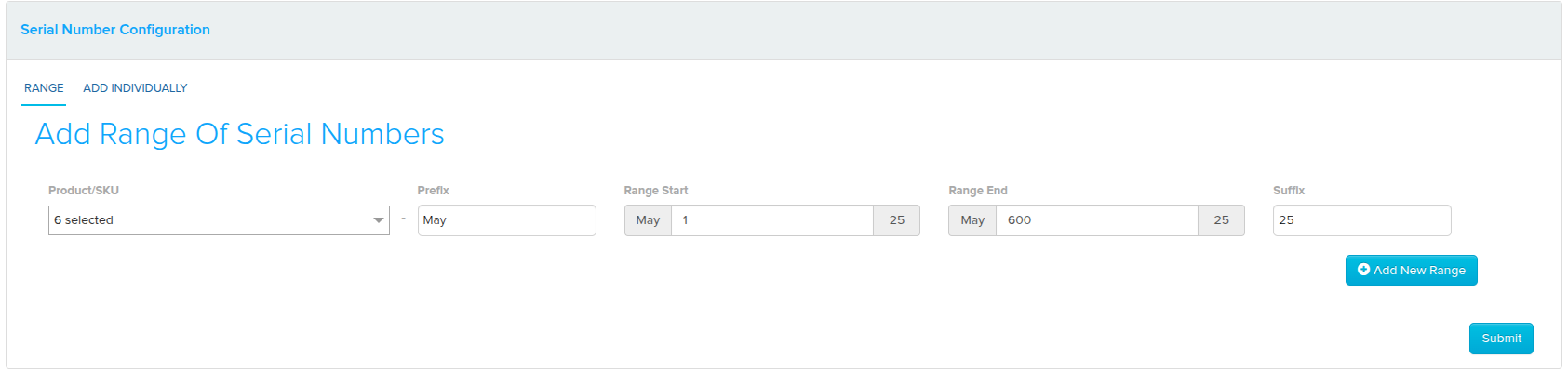
- If the products have serial numbers, add a serial number range (see below). Click Add New Range to add more ranges for other products.
- Click Submit.
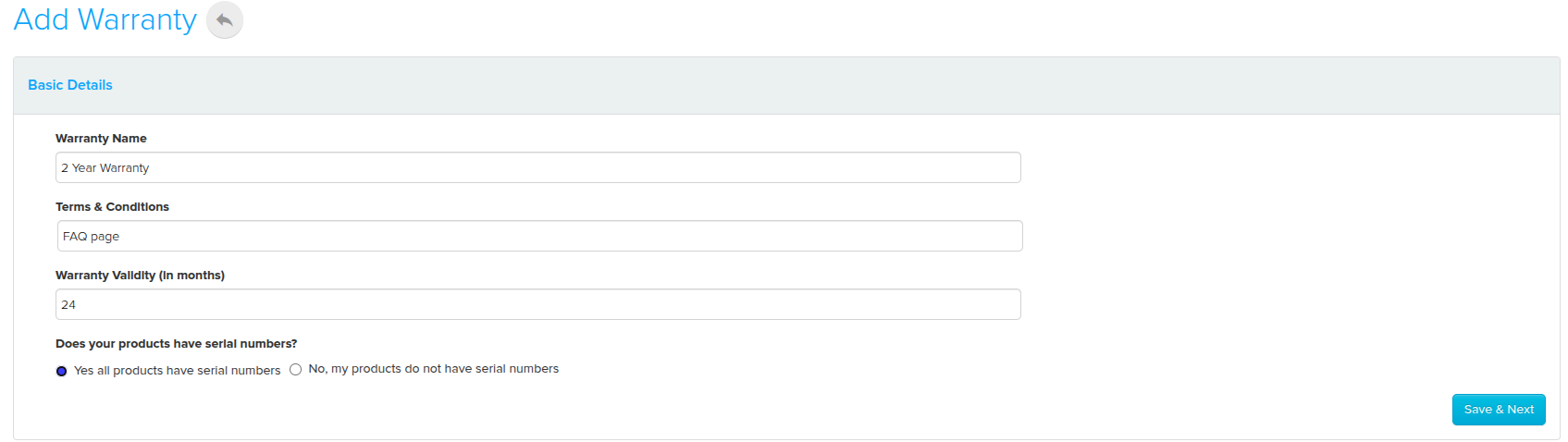
| Field | What it does | Example |
|---|---|---|
| Warranty Name | The name of the warranty plan. | 1-Year Seller Warranty |
| Terms & Conditions | A page or URL with the warranty terms for customers to read. | Your warranty policy page |
| Warranty Validity (In months) | How long the warranty lasts. | 12 |
| Serial number | Choose Yes if your product has a serial number, so you can add serial numbers later. Otherwise choose No. | Yes |
Serial number ranges
| Field | What it does | Example |
|---|---|---|
| Product/SKU | The products that get serial numbers from this range. | 6 selected |
| Prefix | Text at the start of each serial number. | May |
| Range Start & End | The first and last number in the range. | 1 to 600 (May-1 to May-600) |
| Suffix (Optional) | Text at the end of each serial number. | 25 (May-1-25) |
What happens next
The new warranty appears on the Warranty Types tab. You can also mark a product as covered when you edit it: tick This product has warranty and enter its warranty code.
When a customer registers a product, the registration appears on the Pending tab. Approve or decline it. The customer gets a message by WhatsApp or email when they register, and again when you approve or decline. All registrations are listed on the Registrations tab and in the Warranty report.
How customers register a warranty
- The customer logs in or signs up on your store.
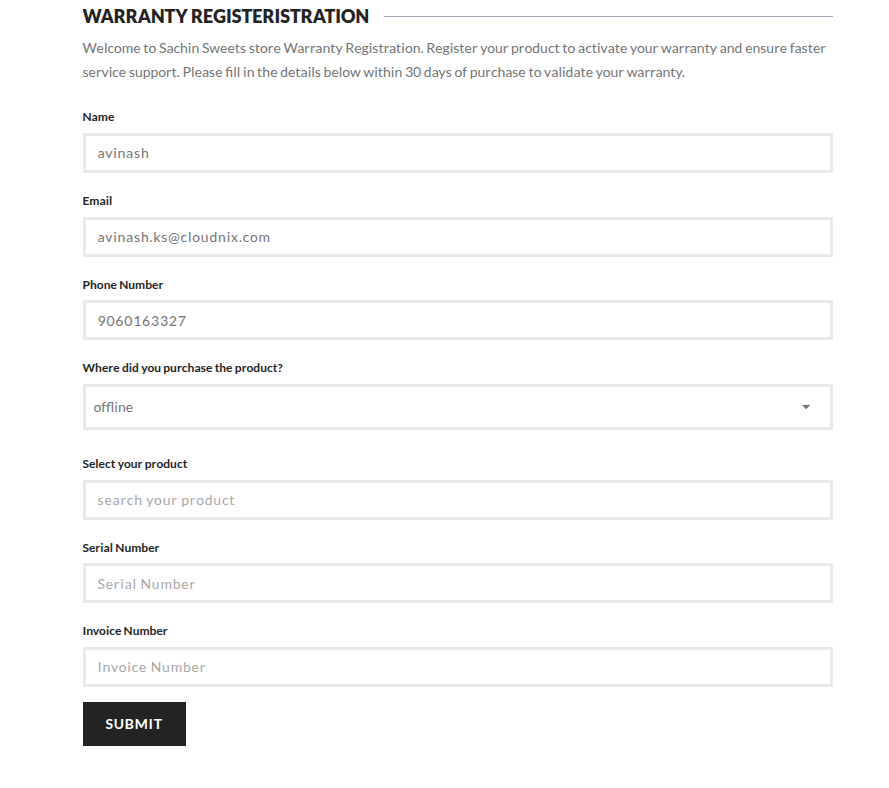
- They go to the Register Product page.
- They select the Product Type and enter the Product Name.
- They enter the warranty card number and the date and place of purchase.
- They upload the invoice as a .jpg, .png or .pdf file.
- They click SUBMIT.
Related articles
- Add a product
- Warranty report
- Apps: turn on extra features
- Send WhatsApp messages
- Add and edit pages
- View and add customers
Need more help? Email support@shopnix.io or call +91 8880788813.
No comments to display
No comments to display