
View and add customers
Your customers are the people who have registered in your store. When a registered customer places an order, their contact details and address are already saved, so they don't need to type them again. You can view, search, add and edit customers in Store Manager.
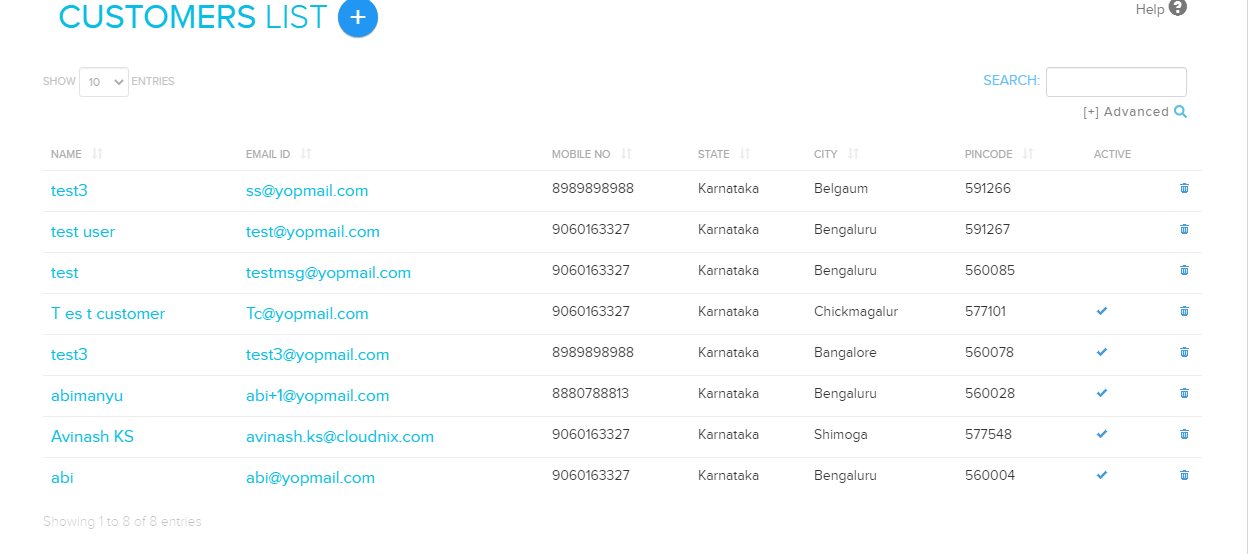
View your customers
- Go to Store Manager → Customers → Manage Customers.
- You see a list of all registered customers.
- To find a customer, use the search filters at the top of the list: Name, Mobile, Email Id, State, City, Pincode, Wholesale and Active. For a fuller list, use the Advanced Search Report.
- Click a customer's name to see all their details.
Add a customer
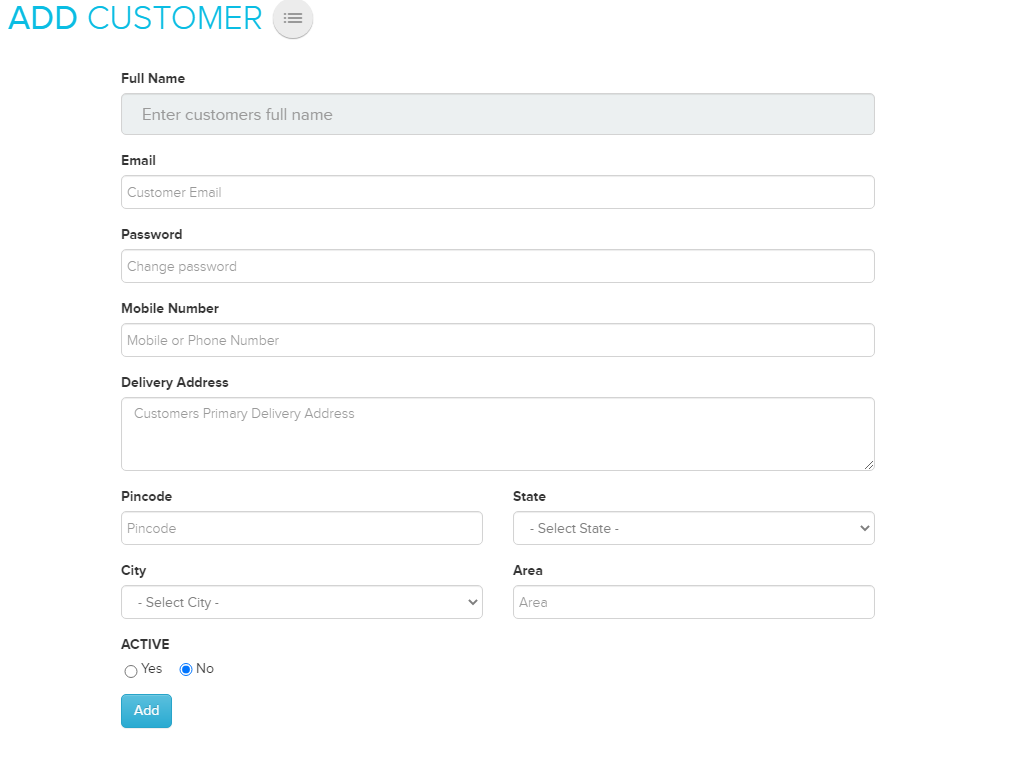
Customers who register in your store are added automatically. You can also add a customer yourself, for example someone who orders by phone.
- Go to Store Manager → Customers → Add a Customer.
- Fill in the details: Full Name, Email, Password, Mobile Number and the delivery address (state, city, area and pincode).
- Tick Wholesale if this is a wholesale customer, and make sure Active is ticked.
- Click Add.
Edit a customer
- Go to Store Manager → Customers → Manage Customers.
- Click the name of the customer you want to edit.
- Change the details you need.
- Click Save.
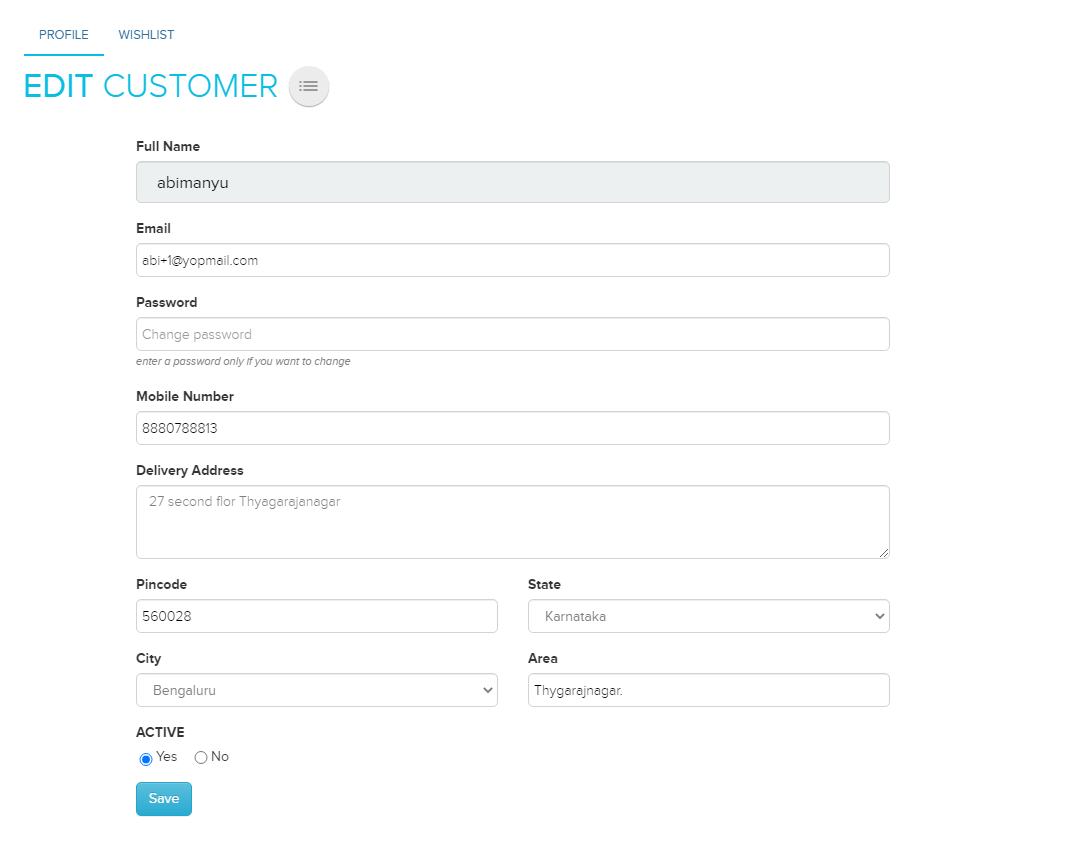
The customer's page also links to their Orders and their Wishlist. See Customer wishlists.
Related articles
- How customers log in (OTP, Google and Facebook)
- Customer wishlists
- Newsletter subscribers
- Create an order for a customer
- Send WhatsApp messages
Need more help? Email support@shopnix.io or call +91 8880788813.
No comments to display
No comments to display