
Set up an SMS gateway
Connect an SMS gateway so Shopnix can text your customers, for example when they place an order and when their order is moved to shipping. The SMS gateway also sends the OTPs customers use to log in and to confirm their mobile number at checkout.
Before you start
- Your store comes with three SMS gateways listed: BhashSMS (active by default), SMSGupshup and SolutionsInfini. To use your own account with one of them, buy an SMS package from that provider, for example SMS Gupshup (enterprise.smsgupshup.com).
- Keep the account details from your provider ready.
Set up your SMS gateway
- Go to Store Manager → Setup → Gateways → SMS Gateway. You see the list of SMS gateways in your store.
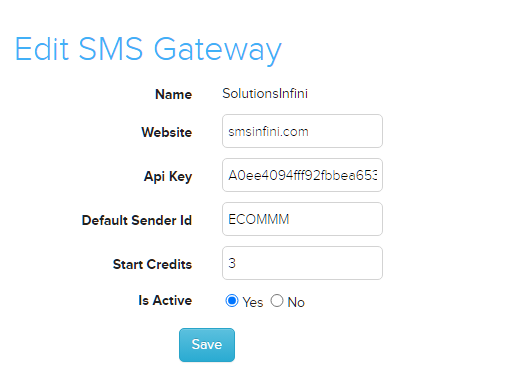
- Click the name of your SMS gateway. The Edit SMS Gateway page opens.
- Fill in the details from your SMS provider: the gateway URL, username, password, API key and default sender ID. Make sure the gateway is set to active.
- Click Save.

Change your SMS gateway details
- Go to Store Manager → Setup → Gateways → SMS Gateway.
- Click the name of your SMS gateway.
- Update the details and click Save.
What happens next
Customers get an SMS when they place an order and when you move their order to shipping. To see the messages sent, use the Sent SMS report.
Related articles
- Sent SMS report
- Process and update an order
- Turn store features on or off (shop settings)
- How customers log in (OTP, Google and Facebook)
- Send WhatsApp messages
Need more help? Email support@shopnix.io or call +91 8880788813.
No comments to display
No comments to display