
Send, view and resend emails
Your store sends emails to customers automatically. You can see every email your store has sent, check whether it was delivered, send a new email to a customer, and resend an email.
When your store sends emails
- When a customer places an order.
- When you change an order's status, for example to shipped, delayed or cancelled. Each status has its own email.
- When a customer registers, activates their account or resets their password.
- To remind customers about products left in their cart. See Abandoned cart reminders.
- When you send an email yourself from Store Manager.
View sent emails
- Go to Store Manager → Marketing → Sent Emails.
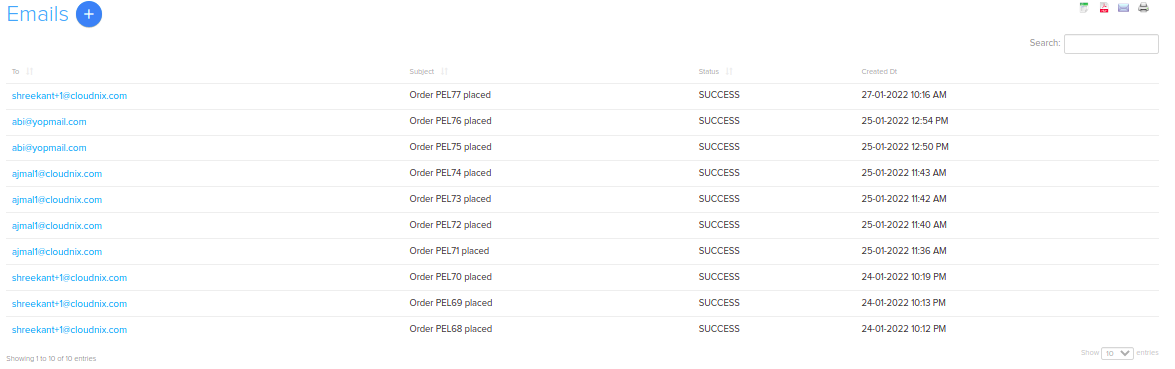
- You see a list of all emails sent by your store. For each email you can see whether it was sent or failed, who it went to, what it said and the date it was sent.
- To find specific emails, use the filter options on the Sent Emails page.
Send a new email
- Go to Store Manager → Marketing → Sent Emails.
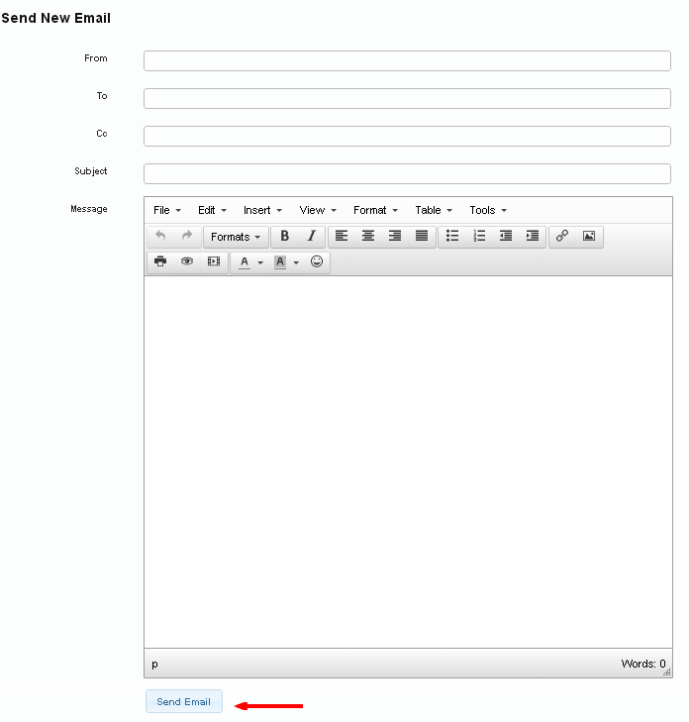
- Click Send an Email.
- Fill in From, To, CC (optional), Subject and Message.
- Click Send.
Resend an email
Resend an email if it failed or the customer can't find it.
- Go to Store Manager → Marketing → Sent Emails.
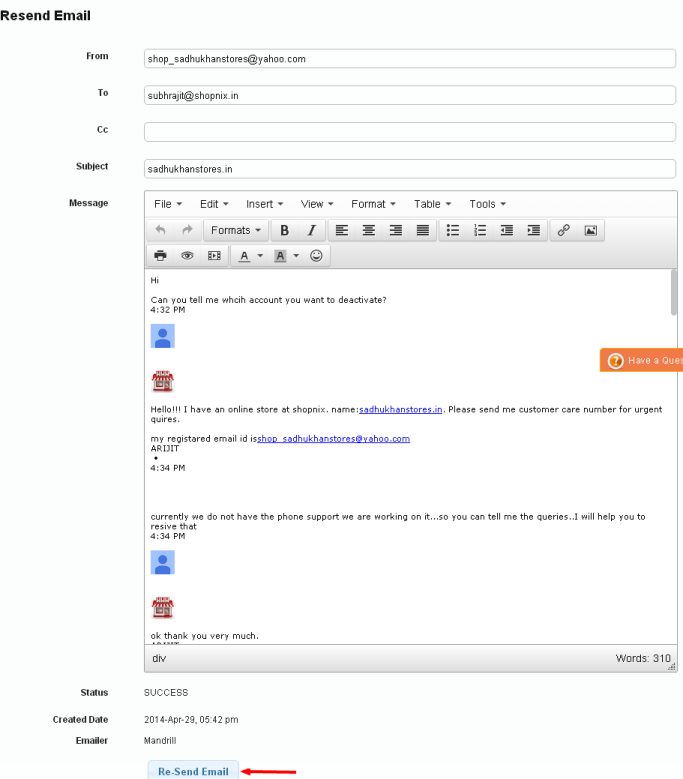
- Find the email, using the filters if needed, and click it.
- If you want, edit the email.
- Click Resend Email. The email is sent again to the same email address.
Related articles
- Print or email an order invoice
- Newsletter subscribers
- Sent SMS report
- Send WhatsApp messages
- Abandoned cart reminders
Need more help? Email support@shopnix.io or call +91 8880788813.
No comments to display
No comments to display