
Create an order for a customer
You can create an order on behalf of a customer, for example when they order by phone or WhatsApp. You add the products, payment and shipping details yourself, and you can send the customer a payment link.
Before you start
- The customer must already have an account in your store. You find them by their email ID. See View and add customers.
Create an order
- Go to Store Manager → Orders and click Add New Order.
- In the Customer box, enter the email ID of the customer.
- Click Add.
- Under Product Name, type the product the customer wants. The other product fields fill in automatically.
- Click the + icon to add the product. Repeat for each product in the order.
- Open the Summary tab and add any extra details, such as an additional shipping charge, area or city shipping charge, COD charge, discount coupon amount, gift card amount, ordered date, order status, delivery window or order comments.
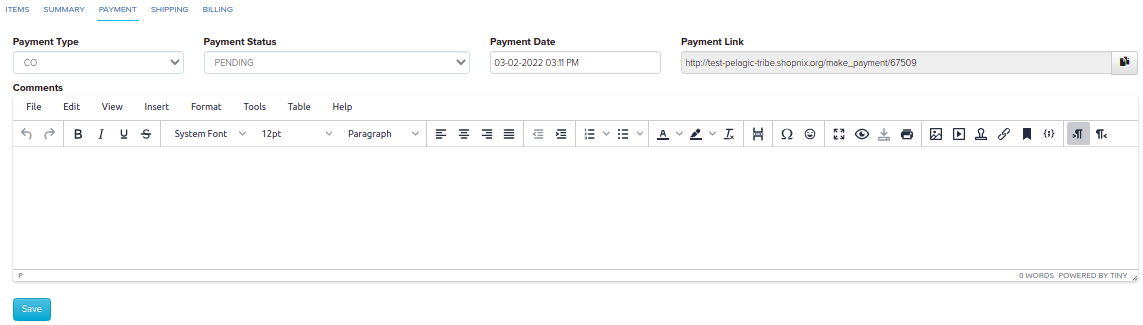
- Open the Payment tab and enter the payment type and date. This tab also shows the order's payment link. Click Save.
- Open the Shipping tab, enter the customer's delivery address and click Save.
- Open the Billing tab if the billing address is different, for example when the customer is sending the order as a gift to someone else. Click Save.
- If the customer needs a GST invoice, enter their GSTIN on the order.
- To add a gift note, open the Gift Message tab and fill in Gift Message From, Gift Message To and Gift Message.

What happens next
The order appears in Store Manager → Orders like any other order. If the customer has not paid yet, copy the payment link from the Payment tab and send it to them. See Send a payment link.
Related articles
Need more help? Email support@shopnix.io or call +91 8880788813.
No comments to display
No comments to display