
Send a payment link
When you create an order for a customer, Shopnix gives you a payment link for it. Send the link to the customer so they can pay for the order online.
Before you start
- To take online payments, your store needs a payment gateway. Shopnix must first enable a gateway for your store. See Payment gateways: choose and connect one.
Get a payment link
- Go to Store Manager → Orders and click Add New Order.
- In the first tab, enter the customer's details and click Add.
- Add the products and other order details. See Create an order for a customer for every step.
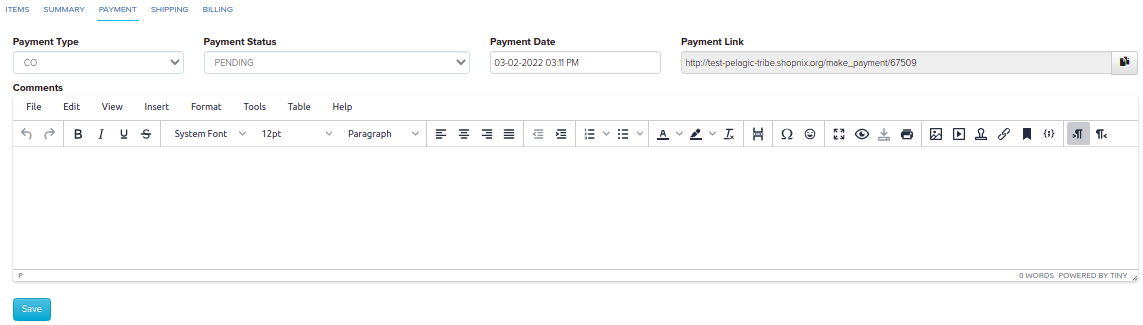
- Open the Payment tab. Enter the payment type and date.
- Copy the link shown in the Payment Link field.
- Click Save.
What happens next
Send the link to your customer, for example by email, SMS or WhatsApp. The customer opens the link and pays for the order online.
You can also find the payment link of an existing order. Open the order from Store Manager → Orders and go to the Payment tab.
Related articles
- Create an order for a customer
- Track and update order payments
- Payment gateways: choose and connect one
Need more help? Email support@shopnix.io or call +91 8880788813.
No comments to display
No comments to display