
Payment gateways: choose and connect one
A payment gateway lets customers pay online in your store, for example by card, net banking, UPI or wallet. It passes the payment securely between the customer, your store and the bank, and confirms the payment straight away. Connect a gateway before you take online payments.
How it works
- You contact Shopnix support and ask for a payment gateway. Shopnix turns on the gateway for your store.
- You open a merchant account with that gateway. The gateway gives you your account details, such as a merchant ID and a salt or secret key.
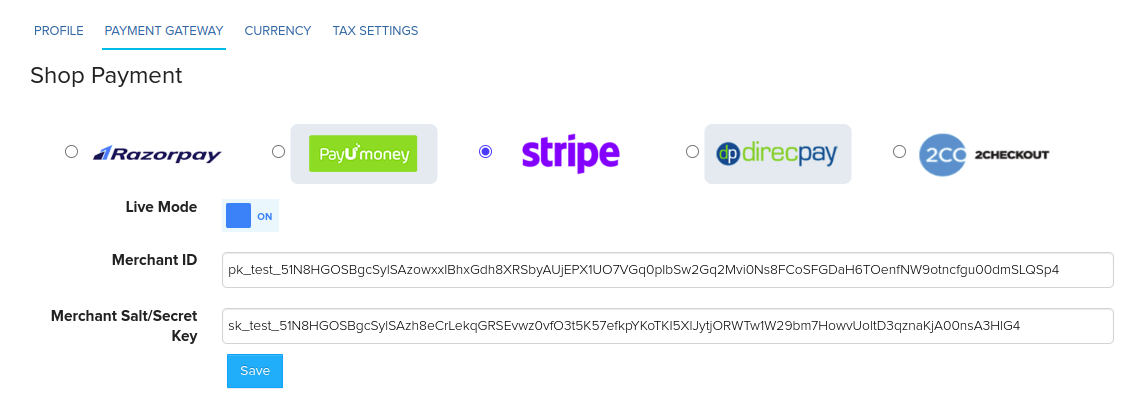
- You enter those details in Store Manager, on the Payment Gateway tab.
- At checkout, customers pay through the gateway, and you get confirmation of the payment straight away.
You can't add a gateway yourself. The Payment Gateway tab in Shop Profile only appears after Shopnix has turned on a gateway for your store.
Gateways you can use
| Gateway | Good for | Pricing |
|---|---|---|
| Razorpay | Indian gateway. Cards, net banking, UPI and wallets. | razorpay.com/pricing |
| PhonePe | Indian gateway. | PhonePe Payment Gateway |
| Cashfree | Indian gateway. | cashfree.com |
| PayUmoney | Indian gateway. Cards, net banking and wallets. | PayUmoney fees |
| Stripe | Global gateway. Cards and digital wallets from customers around the world, in many currencies. | stripe.com/in/pricing |
| 2Checkout | Global gateway. Cards and PayPal, in many currencies. | 2checkout.com/pricing |
| DirecPay | Older Indian gateway, still supported for existing stores. | Contact DirecPay |
Each gateway sets its own fees, and they can change. Always check the gateway's own website for current pricing.
Choose a gateway
- Most customers in India: choose an Indian gateway such as Razorpay, PhonePe, Cashfree or PayUmoney.
- Customers outside India: choose a global gateway such as Stripe or 2Checkout, which accept many currencies. You can also add PayPal as a second, international option. See Accept international payments with PayPal.
- Compare: transaction fees, the payment methods your customers use, security, and the gateway's customer support.
Connect your gateway
- Contact Shopnix support and tell us which gateway you want. See Contact Shopnix support.
- When Shopnix has turned it on, go to Store Manager → Setup → Shop Profile.
- Open the Payment Gateway tab.
- Click the radio button for your gateway.
- Enter your gateway account details. See Enter your payment gateway keys.
Other ways to get paid
- Cash on delivery: customers pay when the order arrives.
- Bank transfer: customers pay into your bank account.
Related articles
- Enter your payment gateway keys
- Accept international payments with PayPal
- Set up cash on delivery
- Track and update order payments
- Update your shop profile
Need more help? Email support@shopnix.io or call +91 8880788813.
No comments to display
No comments to display