
Enter your payment gateway keys
To take online payments, enter the account details your payment gateway gave you into Store Manager. You do this once for the gateway you choose.
Before you start
- Ask Shopnix to turn on your payment gateway. Contact Shopnix support and tell us which gateway you want. The Payment Gateway tab only appears after this is done. See Payment gateways: choose and connect one.
- Open a merchant account with the gateway and have your account details ready, such as your merchant ID and salt or secret key.
Enter your gateway keys
- Log in to Store Manager at
YOUR-STORE.com/admin. - Go to Store Manager → Setup → Shop Profile and open the Payment Gateway tab.
- Click the radio button for your gateway (the provider).
- Fill in the fields below exactly as your gateway gave them to you.
- Save your changes.
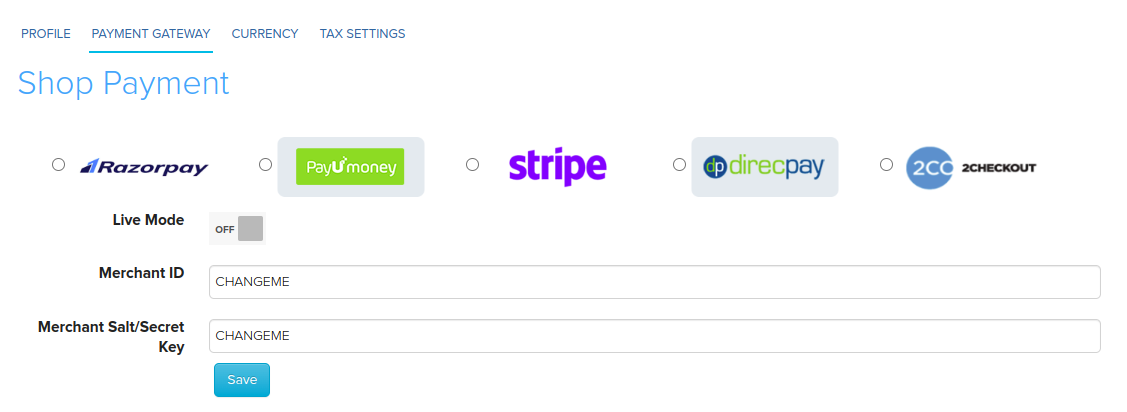
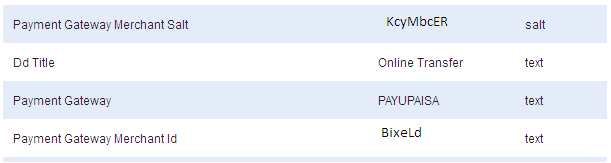
Gateway fields
| Field | What it does |
|---|---|
| Live Mode | Switches the gateway between test payments and real payments. Turn it on when you are ready to take real payments. |
| Merchant ID | Your merchant ID or key from the gateway. |
| Merchant Salt/Secret Key | Your salt or secret key from the gateway. Keep it private. |
| Gateway Currency | The currency the gateway charges customers in, for example INR. |
| Country Code | Your country code, if your gateway asks for it. |
| Salt Index | PhonePe only. The salt index PhonePe gives you with your salt key. |
If you don't see a Payment Gateway tab in Shop Profile, Shopnix has not turned on a gateway for your store yet. Contact Shopnix support.
What happens next
Customers can pay online at checkout. With PhonePe and Cashfree, the gateway also sends each payment confirmation straight to your store. You can check the payment on each order. See Track and update order payments.
Related articles
- Payment gateways: choose and connect one
- Track and update order payments
- Set your store currency
- Update your shop profile
Need more help? Email support@shopnix.io or call +91 8880788813.
No comments to display
No comments to display