
Update orders in bulk
Instead of changing orders one by one, you can select several orders and update them together. You can change their status, delete them, or create a report for just those orders.
Select orders
- Go to Store Manager → Orders.
- Tick the box next to each order you want to change. To select all orders on the list, tick the box at the top of the list.
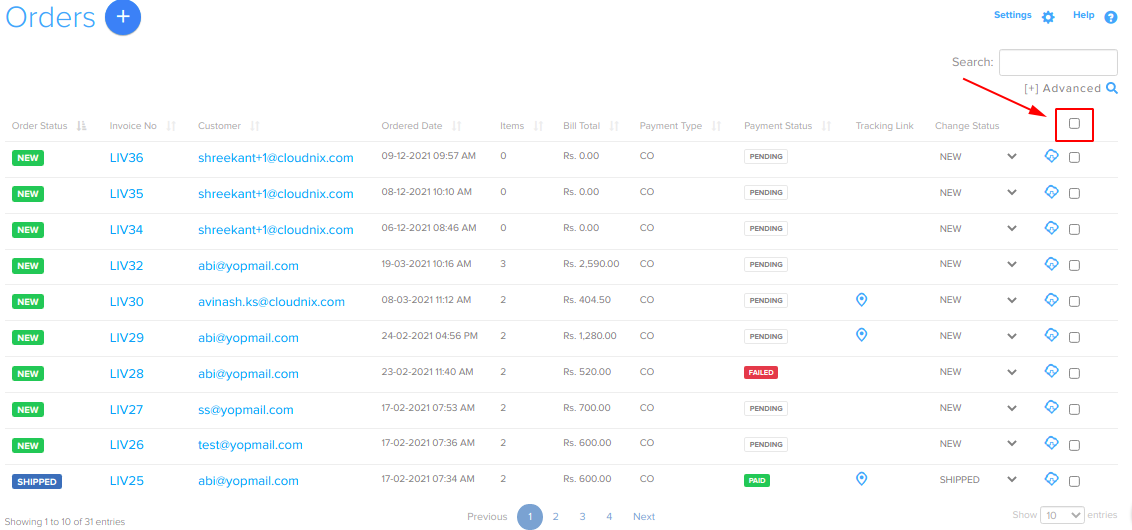
Change the status of several orders
- Select the orders.
- Choose Change Status and pick the new status, for example PROCESSING.
- Confirm in the pop-up.
The status changes on every selected order.
Create a report for selected orders
- Select the orders.
- Choose to generate the Order Report or the Order Items Report.
See Order report and Order items report.
Delete several orders
- Select the orders.
- Click the delete icon.
- Confirm in the pop-up.
A bulk change applies to every selected order. Check your selection before you confirm.
Mark an order as shipped
To change an order's status to SHIPPED and add a tracking link, use the Change Status column on the orders list. See Process and update an order.
Related articles
Need more help? Email support@shopnix.io or call +91 8880788813.
No comments to display
No comments to display