
Set up couriers
Couriers are the delivery companies you use to send orders. When you mark an order as shipped, you choose the courier, and you and your customer can track the consignment from your store.
Couriers already in your store
Your store comes with these logistics providers already added:
- AFL
- Aramex
- Blue Dart
- Deccan 360
- DHL
- DTDC
- FedEx
- First Flight
- GATI
- Indian Postal Service
- Maruti
- Professional
See your courier list
- Go to Store Manager → Setup → Couriers.
- The list shows all couriers added to your store.
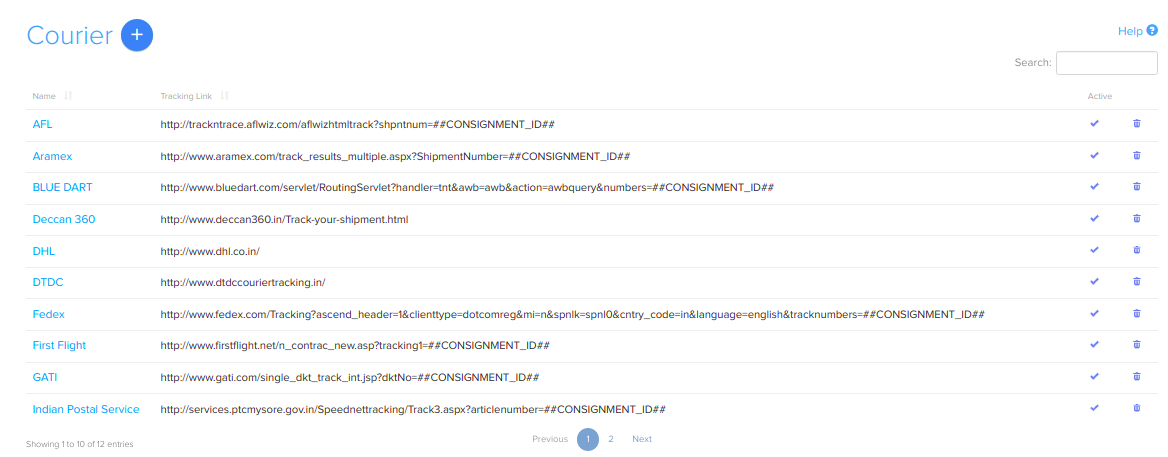
Add a courier
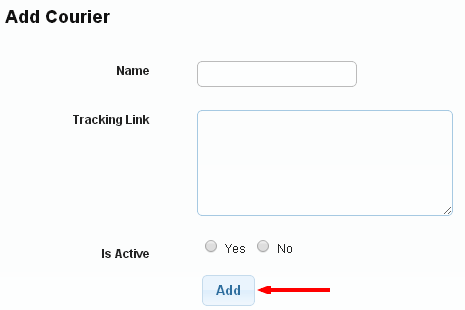
- Go to Store Manager → Setup → Couriers → Add New Courier.
- On the Add Courier page, fill in the details below.
- Click Add.
| Field | What it does | Example |
|---|---|---|
| Name | The courier's name, shown on the order. | DTDC |
| Tracking Link | The courier's tracking web address. Put ##CONSIGNMENT_ID## where the consignment number goes. Your store fills it in for each order. | https://www.example.com/track?awb=##CONSIGNMENT_ID## |
| Tax Rate | The tax rate on this courier's charges. | 18 |
| Surcharges Rate | Any extra surcharge rate the courier adds. | 5 |
| Is Active | Untick to stop using a courier without deleting it. | Ticked |
Edit a courier
- Go to Store Manager → Setup → Couriers.
- Click the courier's name. The Edit Courier page opens.
- Make your changes and click Save.
To stop using a courier, untick Is Active.
Courier zones and weight-based rates
If courier zones are turned on for your store, each courier has View Zones, where you set prices by weight. See Courier zones and weight-based rates.
Related articles
- Process and update an order
- Update orders in bulk
- Courier zones and weight-based rates
- Ship orders with Shiprocket
- Courier report
Need more help? Email support@shopnix.io or call +91 8880788813.
No comments to display
No comments to display