
How orders work
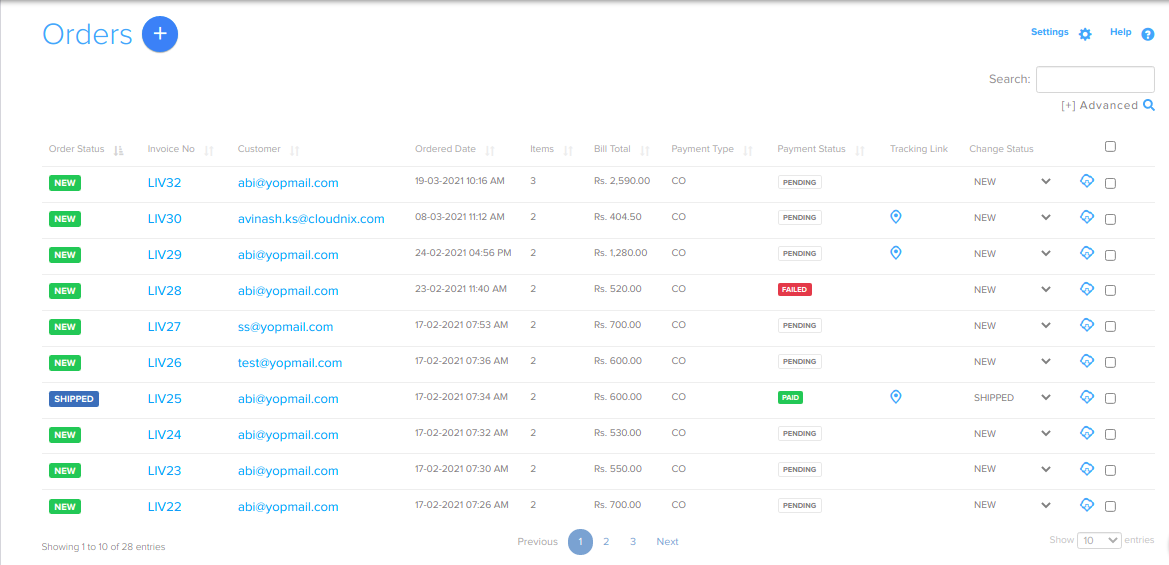
Every time a customer buys from your store, Shopnix creates an order. The order holds everything about the purchase: the products, the customer's details, payment and shipping. You manage all orders in one list in Store Manager.
How it works
- A new order starts with the status NEW.
- When you send the order, you change its status to SHIPPED and add the courier name and consignment ID. A tracking link then appears on the order.
- Each order also has a payment status: PAID, PENDING, FAILED or REFUNDED.
- You can also create orders yourself, for example for a customer who orders by phone.
Order statuses
| Status type | Values |
|---|---|
| Order status | NEW, DELAYED, PROCESSING, SHIPPED, CANCELLED, REJECTED, DELIVERED, RETURNED, SHIPMENT CANCELLED |
| Payment status | PAID, FAILED, PENDING, REFUNDED |
| Payment type | Cash On Delivery, Net Banking, Credit Card, Debit Card, DD/MO/Cheque, UPI |
When you change an order's status, Shopnix emails the customer. If WhatsApp messages are turned on, the customer also gets a WhatsApp message.
Find your orders
- Go to Store Manager → Orders. You see the list of all orders.
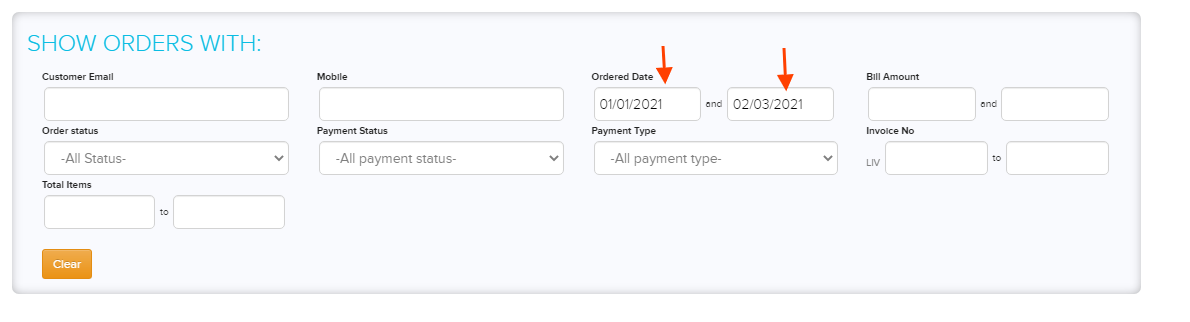
- To find particular orders, use the Show Orders with search options. For example, choose Ordered Date and enter a date range such as 01-Jan-2021 to 02-Mar-2021.
- Click the search button. The list shows only the matching orders.
You can also search by invoice number, customer name, email or mobile, order status, payment status, payment type, courier name, consignment ID, bill amount and number of items.
Delete orders
- Go to Store Manager → Orders.
- Tick the box next to the order you want to delete. To delete several orders, tick the box at the top of the list to select them all.
- Click the delete icon.
- Confirm in the pop-up.
Deleted orders cannot be brought back from this screen. Check your selection before you confirm.
Example
A customer in Pune orders a ₹1,200 kurta and chooses cash on delivery. The order appears in Store Manager → Orders with status NEW and payment status PENDING. You pack the kurta, hand it to the courier and change the status to SHIPPED with the consignment ID. When the courier collects the cash, you change the payment status to PAID.
What you can do
- Process and update an order: edit details, mark it as shipped and add tracking.
- Create an order for a customer.
- Send a payment link so a customer can pay online.
- Print or email an order invoice.
- Update orders in bulk.
- Track and update order payments.
- Set your invoice numbering.
Stores that handle many orders can use Advanced Order Management (procure, bill, pack) to move each item through its own stages. On franchise (multi-store) stores, the Orders menu is replaced by Suppliers. See Run franchise stores.
Related articles
- Set up couriers
- Ship orders with Shiprocket
- Order report
- Advanced Order Management (procure, bill, pack)
Need more help? Email support@shopnix.io or call +91 8880788813.
No comments to display
No comments to display