
Upload products in bulk
Add many products at once instead of one by one. First you upload a CSV file with the product details, then you upload the product images.
Upload products with a CSV file
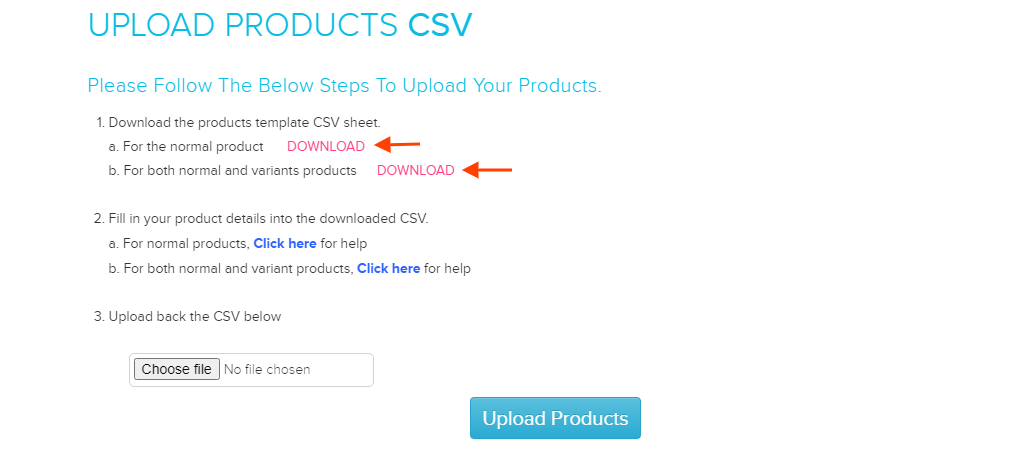
- Go to Store Manager → Products → Upload Products CSV.
- Click Download to get a template. There are two: one for normal products only, and one for normal and variant products.
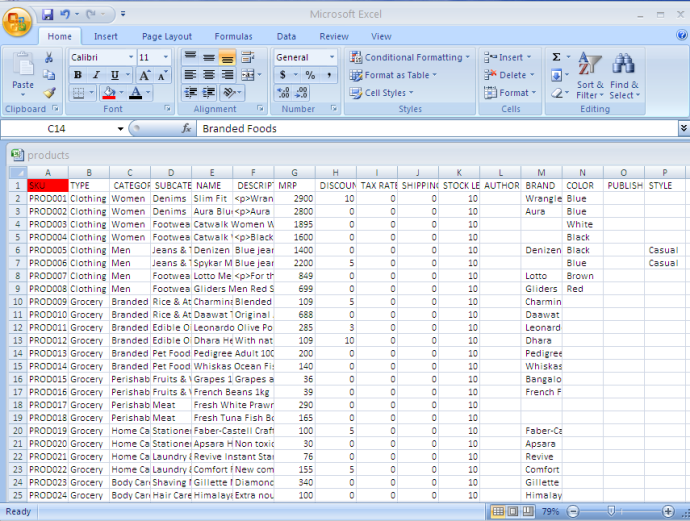
- Open the file in Excel or another spreadsheet app and fill in the product details.
- Back on the Upload Products CSV page, click Choose File and select your file.
- Click Upload Products.
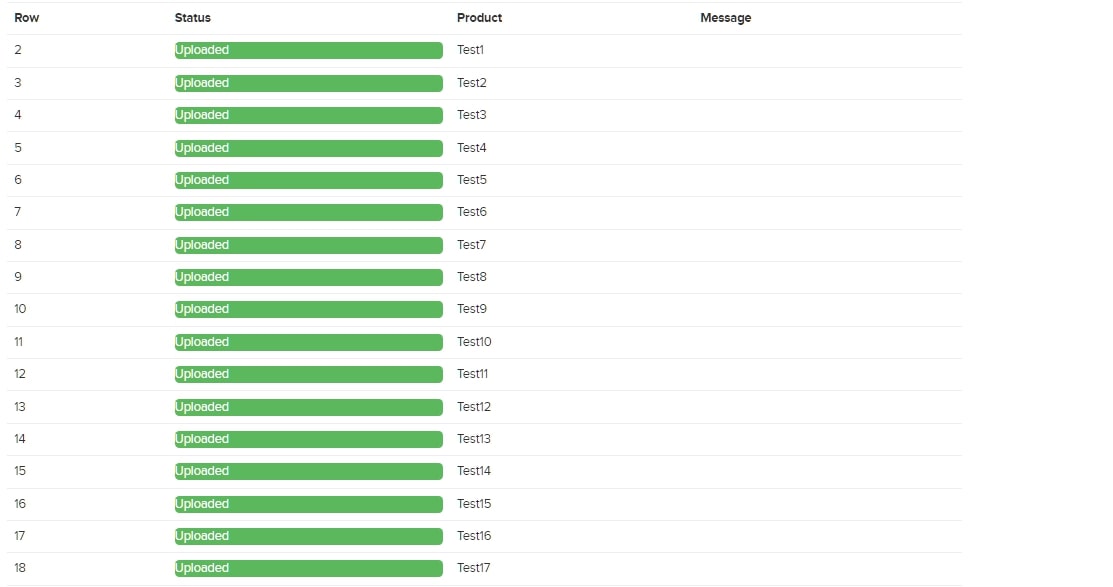
- Check the list that appears. It shows whether each product uploaded.
Each product needs a unique SKU (stock keeping unit) in the SKU column.
Useful columns
The template has these columns: SKU, TYPE, CATEGORY, SUBCATEGORY, NAME, DESCRIPTION, LIST PRICE, DISCOUNT RATE, GST or TAX RATE, SHIPPING CHARGES, STOCK LEVEL, IS REDUCE STOCK, IS TAX INCLUSIVE, MIN ORDER QTY, IS ACTIVE and HSN. The variant template also has VARIANT SKU and VARIANT NAME/VALUE 1 to 3. Optional columns are WARRANTY CODE, PRODUCT URL and one column per tag.
If a type, category or subcategory in your file does not exist yet, the upload creates it for you.
- IS REDUCE STOCK: enter
1to turn on Auto Reduce Stock Level for the product, or0to turn it off. See Track inventory and stock. - Variant columns: enter variant names and values, such as colour and size. See Add product variants (size, colour and more).
Upload the product images
- Name each image file with its product's SKU.
- Go to Store Manager → Products → Upload Product Images.
- Click Upload, select all the images and click Open.
- Check the status list. It shows whether each image uploaded.
Images whose names don't match a product SKU are not accepted. See Add product images.
Download your products
To get a copy of your catalogue in the same format, go to Store Manager → Products → Download Products CSV, or Download Variant Products CSV for variant products.
Related articles
Need more help? Email support@shopnix.io or call +91 8880788813.
No comments to display
No comments to display