
Set product prices
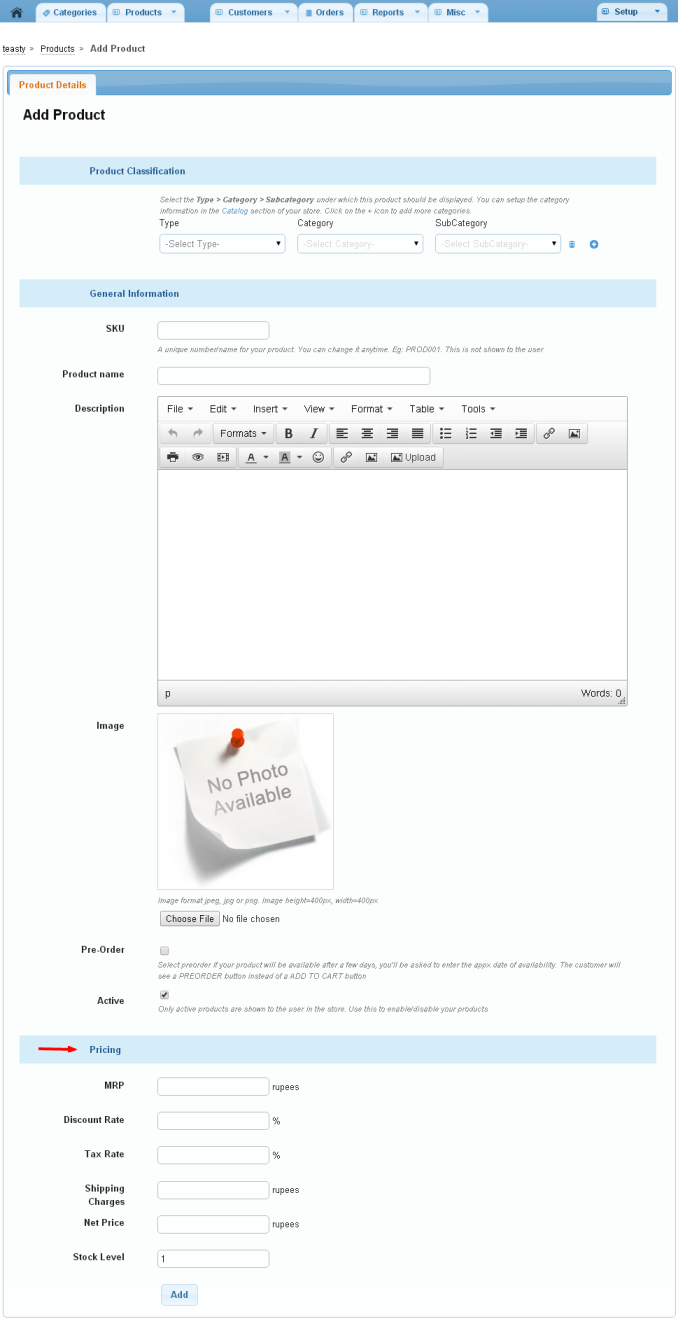
Set a product's price in the Pricing section of the product form. Shopnix works out the discounted price and the net price the customer pays from the list price (MRP), discount, tax and shipping you enter.
Set a product's price
- Go to Store Manager → Products → Add a Product. To change an existing product, open it from Store Manager → Products → Manage Products by clicking its SKU.
- Scroll to the Pricing section.
- Enter the List Price (MRP), Discount Rate %, GST Rate (or Tax Rate %) and Shipping Charges.
- If the list price already includes GST, tick Inclusive of GST Tax.
- Check the discounted price and net price.
- Click Save.
How the price is calculated
- Discounted Price = List Price − (List Price × Discount Rate ÷ 100)
- Net Price = Discounted Price + (Discounted Price × Tax Rate ÷ 100) + Shipping Charges
This calculation is for a price that does not include tax. If you tick Inclusive of GST Tax, the tax is treated as already part of the list price. See Set up GST and taxes.
Example
| Field | Value |
|---|---|
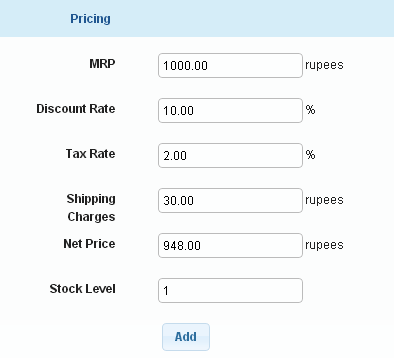
| List Price (MRP) | ₹1,000 |
| Discount Rate | 10% |
| Tax Rate | 2% |
| Shipping Charges | ₹30 |
| Discounted Price | ₹1,000 − ₹100 = ₹900 |
| Net Price | ₹900 + ₹18 + ₹30 = ₹948 |
To give the same discount on many products at once, see Edit products in bulk.
Related articles
- Add a product
- Edit products in bulk
- Create discount coupons
- Set up discount rules
- Set up GST and taxes
Need more help? Email support@shopnix.io or call +91 8880788813.
No comments to display
No comments to display