
Set up discount rules
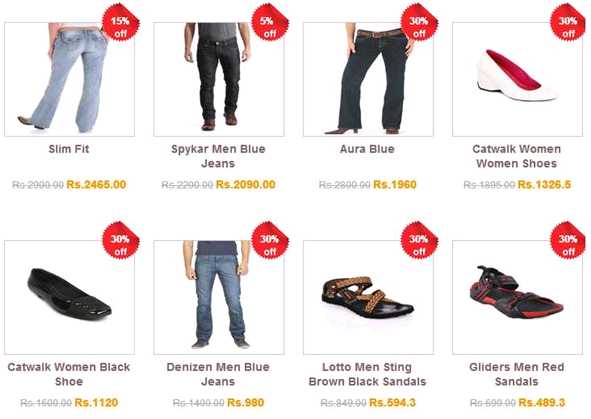
Discount rules take a percentage off a group of products automatically, without a coupon code. For example, you can give 10% off everything in your Clothing type. You can combine rules or stop later rules from adding more discount.
Before you start
- Discount rules are available on selected plans (Mega, or Premium on older plans). See Upgrade or renew your plan.
- A discount rule only applies to products that have a 0% discount in Store Manager → Products → Manage Products. Products that already have their own discount are not affected.
Add a discount rule
- Go to Store Manager → Marketing → Discount Rules.
- Click + (add a new discount rule).
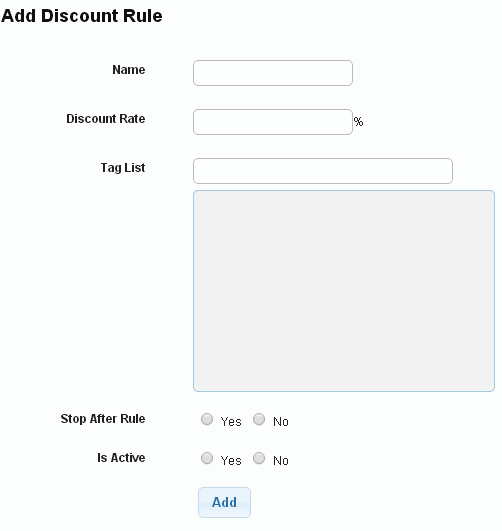
- Fill in the fields. See Discount rule fields below.
- Save the rule.
Discount rule fields
| Field | What it does | Example |
|---|---|---|
| Name | A name to help you recognise the rule. | X |
| Discount Rate | The percentage to take off. | 10 |
| Tag List | The products the rule applies to: products that carry the tags you list. | Type: Clothing Apparel |
| Stop After Rule | If set to Yes, no further discount rules are added for products of the same type, category and so on after this rule. | No |
| Is Active | Turn the rule on or off. | Yes |
How rules combine
You add two rules for the type Clothing Apparel: rule X gives 10% and rule Y gives 20%.
- Stop After Rule is No on rule X: products in Clothing Apparel get 10% + 20% = 30% off. A ₹1,000 shirt sells for ₹700.
- Stop After Rule is Yes on rule X: products in Clothing Apparel get only 10% off. A ₹1,000 shirt sells for ₹900.
Find, edit or delete a discount rule
- Go to Store Manager → Marketing → Discount Rules.
- To find a rule, use the Show Discount Rules with search section.
- To edit a rule, click its name in the Name column, make your changes and save.
- To delete a rule, click the delete icon on its row, then confirm in the pop-up.
Related articles
Need more help? Email support@shopnix.io or call +91 8880788813.
No comments to display
No comments to display