
Sell and manage gift cards
A gift card has a set amount that the holder can spend in your store. For example, a customer can buy a ₹2,000 gift card for a friend, and the friend chooses what to buy with it. You can create, view and edit gift cards, see how each card has been used, and set a minimum gift card value. Customers can also buy gift cards in your store and use them at checkout.
Gift cards are available on selected plans (Mega, or Premium on older plans). See Upgrade or renew your plan.
Add a gift card
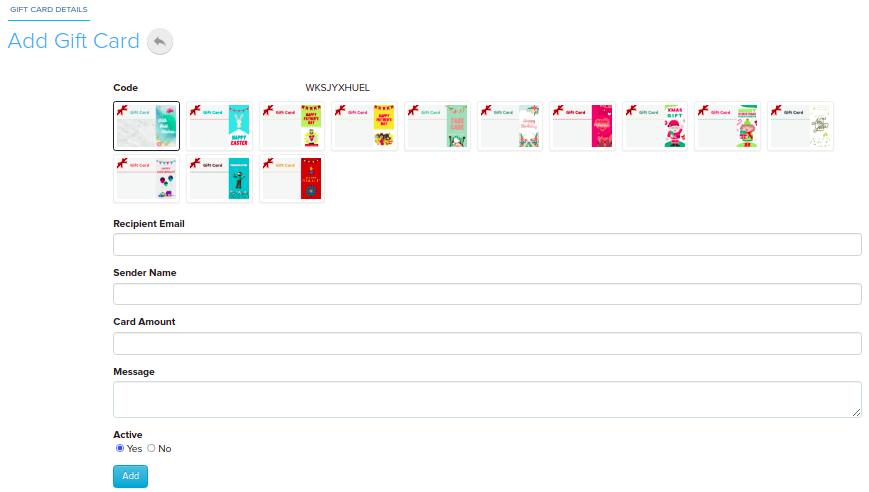
- Go to Store Manager → Marketing → Gift Cards.
- Click + (add a new gift card).
- Fill in the gift card details and save.
The details are: the gift card Code, the recipient's name, email and mobile, the sender's name, email and mobile, a message, the Card Value, the Balance Amount, a Banner Image and Active.
View and edit gift cards
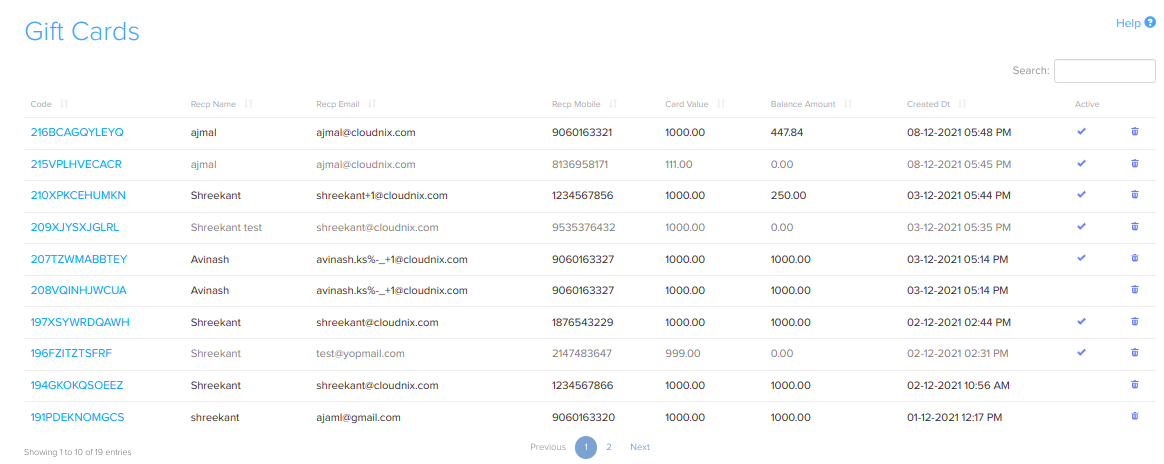
- Go to Store Manager → Marketing → Gift Cards. You see a list of all gift cards.
- To find a gift card, use the filter options at the top of the list.
- To see details or edit a gift card, click its gift card code. Make your changes and save.
- To see how a gift card has been used, open its usage history page.
Set a minimum gift card value
You can stop customers from buying a gift card below a certain amount, for example ₹500.
- Go to Store Manager → Marketing → Gift Cards.
- Open Settings.
- Set the minimum value for gift cards and save.
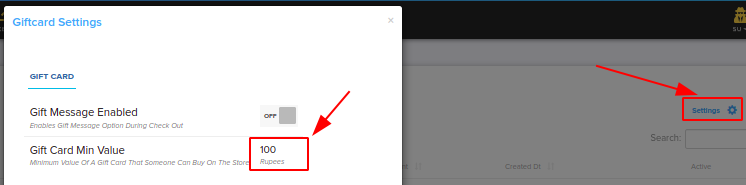
The minimum value, and the option to let customers add a gift message at checkout, are also in Store Manager → Setup → Settings, on the Marketing tab under Gift Card.
How customers buy and use gift cards
- Customers can buy a gift card in your store. Shopnix emails the gift card and also sends a "delivered" email.
- The holder enters the gift card at checkout. The amount is taken off the order and the card's balance goes down.
Related articles
Need more help? Email support@shopnix.io or call +91 8880788813.
No comments to display
No comments to display