
Collect shop feedback
Customers can send you feedback or raise a support issue from your store. Feedback is not shown in your store until you approve it. You can also add feedback yourself, for example a testimonial a customer gave you in person.
How customers give feedback
Customers click the Feedback button on your store's home page. This opens a Contact Us page, where they fill in the form and send their feedback.
View feedback
- Go to Store Manager → Marketing → Shop Feedback.
- You see a list of all feedback.
- To find specific feedback, use the filter options at the top of the list.
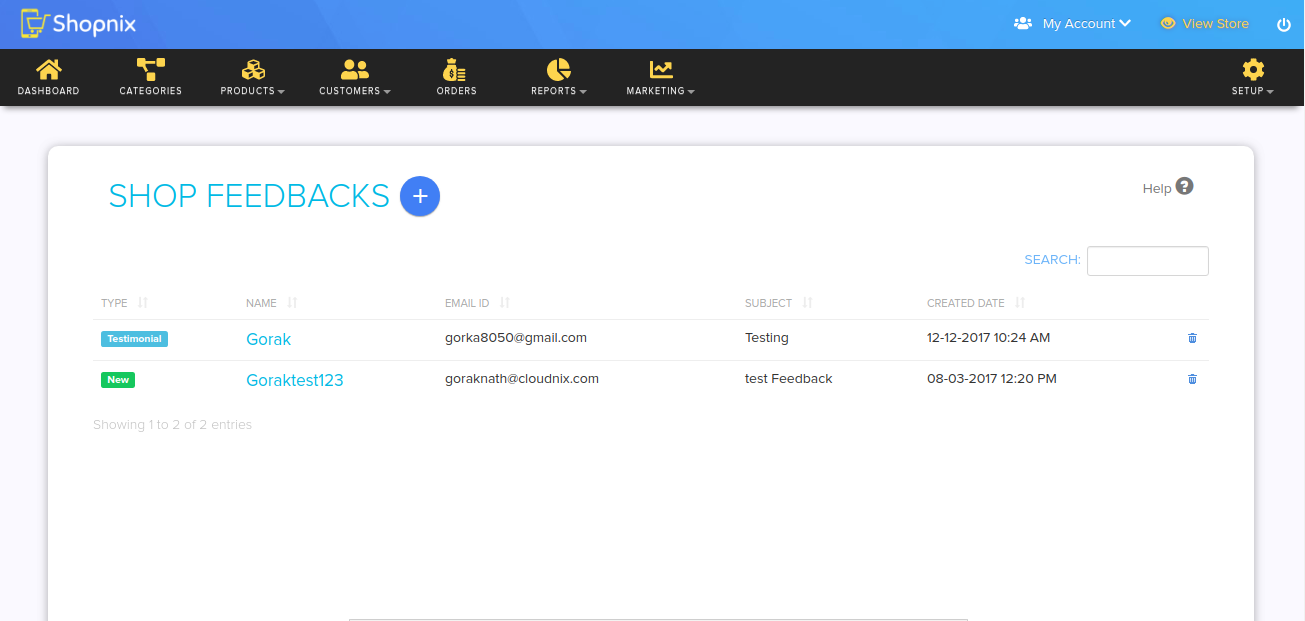
Approve or edit feedback
- Go to Store Manager → Marketing → Shop Feedback.
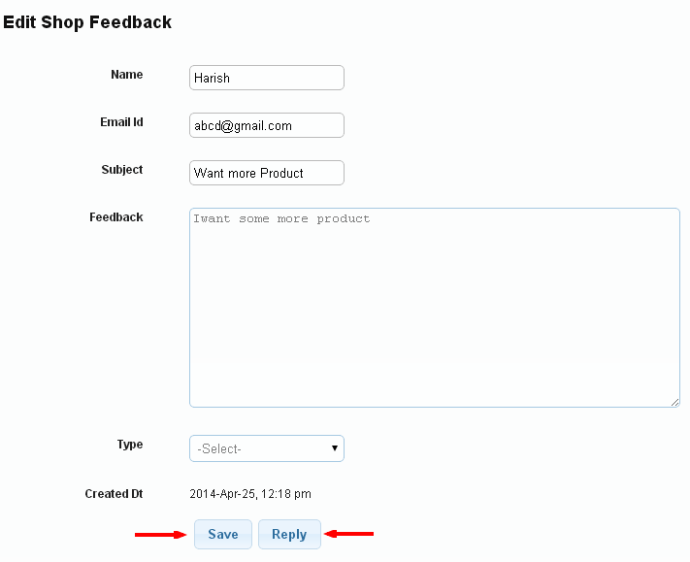
- Click the name on the feedback you want to approve or edit. The Edit Shop Feedback page opens.
- Edit the feedback if needed.
- Choose its type: Testimonial or Complaint. If you need other types, contact Shopnix support to add them.
- If you want, reply to the customer.
- Click Save.
What customers see
Approved testimonials show on your store's testimonials page.
Add feedback yourself
- Go to Store Manager → Marketing → Shop Feedback and click Add New Shop Feedback.
- Fill in all the required details.
- Click Save.
To delete feedback, click the delete icon on its row in the list.
Related articles
Need more help? Email support@shopnix.io or call +91 8880788813.
No comments to display
No comments to display