
Connect Google Analytics
Google Analytics is a free Google service that shows how many people visit your store, how they found it (for example, from Google search or another website) and what they do there. To connect it, you create a Google Analytics account and paste its tracking code into your store's header.
Before you start
- You need a Google account.
Get your tracking code
- Go to Google Analytics and sign in with your Google account.
- Create an account for your store. Google asks for details such as your account name, website name, website address (
YOUR-STORE.com), industry, country and time zone. - Choose your data sharing settings and accept the Google Analytics terms.
- Copy the tracking code (a short piece of HTML) that Google gives you.
Google's screens change often. If they look different, follow Google's own guide: Set up Analytics for a website.
Add the tracking code to your store
- Go to Store Manager → Setup → Pages.
- Click header in the Name column. This is a CODE page whose code is added to every page of your store.
- If the header already has an older Google Analytics code, remove it.
- Paste the new tracking code into the header.
- Click Save.
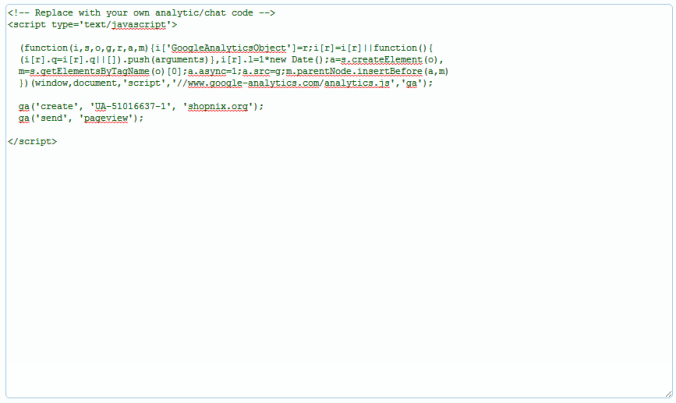
Only remove the old Google Analytics code. Other code in the header, such as a live chat widget, must stay.
What happens next
Google Analytics starts collecting data about visits to your store. You see the reports in your Google Analytics account.
Related articles
- Connect Google Search Console
- Add live chat to your store
- Reports: which one to use
- SEO for your store
Need more help? Email support@shopnix.io or call +91 8880788813.
No comments to display
No comments to display