
Get desktop alerts for new orders
Turn on desktop notifications to get a pop-up and an alert sound in Store Manager every time a customer places a new order. This helps you notice and process new orders quickly.
Turn on desktop notifications
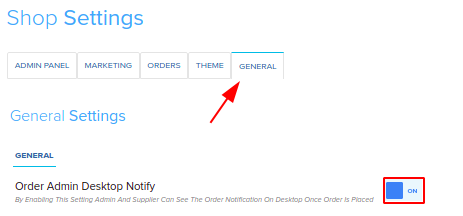
- Go to Store Manager → Setup → Settings.
- Open the General tab.
- Turn on Order Admin Desktop Notify.
If you don't see Order Admin Desktop Notify in shop settings, contact Shopnix support to turn on new-order alerts for your store.
What happens next
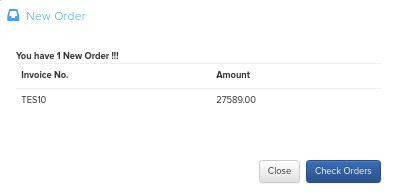
Each time a new order is placed, a pop-up appears with an alert sound.
- Click Check Order to open the order.
- Click Close to dismiss the pop-up.
Related articles
Need more help? Email support@shopnix.io or call +91 8880788813.
No comments to display
No comments to display