GST change from 1 November: selling to other states

The 20-second version: Ask your CA if the 1 November GST change lets you register or sell to other states now. Once your GSTIN is ready, set GST state, GSTIN, HSN, prices, delivery pincodes and check one out-of-state invoice.
GST changed on the 1st. Before you call your CA at 11 pm with the voice of a person who has seen a snake near the inverter, breathe.
For most small online stores, this is not a grand tax drama. It is more like labelling your tiffin boxes before sending them to three different houses. Same sambar. Correct name on the lid.
The new GST rules for online sellers matter if you held back from selling outside your state. Your CA will handle the rule part. Your Shopnix store has a smaller job: charge the right tax, print the right invoice and keep a report your CA can use.
What changed, without the thunder sound
Mint and Hindustan Times reported on 1 November that GST registration has become easier for small ecommerce sellers who want to sell across states, and that sellers do not need to open an office in every state just to sell there. The Economic Times added on 2 November that this makes selling across India simpler for small D2C brands.
That does not mean you should register blindly. Ask your CA one clean question: “Can I now register or update my GST registration to sell online to other states?”
Tip: Rule work with CA. Store work with you. Done. Next.
Put your GSTIN where the invoice can find it
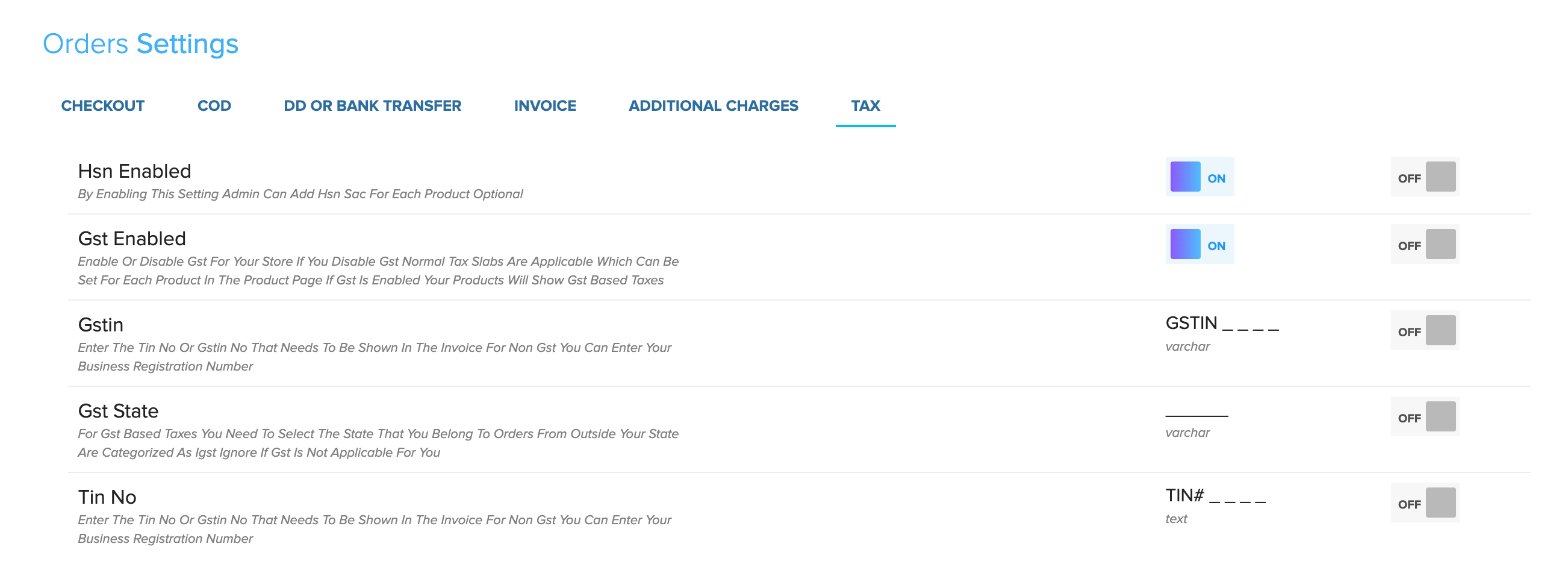
Once your GSTIN arrives, go to Store Manager → Setup → Shop Profile → Tax Settings. Switch on GST, enter your GSTIN and choose your GST state.
That GST state matters. If your spice brand is registered in Karnataka, an order inside Karnataka is treated differently from an order going to Chennai or Pune. For out-of-state orders, Shopnix treats the tax as IGST based on your GST state.
Use the help article on setting up GST and taxes for the click-by-click version. You can also see what Shopnix supports on GST invoices and tax reports.
Tip: Do not guess the GST state. Use the state in your GST registration. Tax is not a buffet counter.
HSN and prices: boring, useful, powerful
HSN codes are like door numbers. Nobody praises them when they are correct. Everyone shouts when they are wrong.
In Store Manager → Setup → Shop Profile → Tax Settings, turn on HSN/SAC. Then add the HSN/SAC on each product from Store Manager → Products → Manage Products → Product Details.
If you have many products, do not open each one like it is a school admission form. Use Store Manager → Products → Download Products CSV, fill the HSN column, then upload it through Store Manager → Products → Upload Products CSV. The bulk steps are here: upload products in bulk.
Now prices. Each product can be GST-inclusive or tax-exclusive. A ₹1,000 kurta marked inclusive still shows ₹1,000 to the buyer, and the invoice splits tax inside that price. If it is exclusive, tax is added on top.
Tip: Pick one price style for the whole store unless your CA has a reason to split it. Customers already ask enough questions.
Open new states like a cautious auntie
Do not open all India delivery at 6 pm and discover at 9 pm that your courier has strong opinions about half the pincodes.
- Go to Store Manager → Setup → Locations.
- Use Load Indian States if your states are not already added.
- Add the first few cities you can serve properly.
- Add areas and pincodes with shipping charges.
- Keep COD off for new far-away pincodes until you understand delivery and returns there.
- If you use Shiprocket, check serviceability from the order’s Ship Now flow before sending the parcel.
COD can also be controlled pincode by pincode. Use the help article on offering COD by pincode. If you ship through Shiprocket, this guide on shipping orders with Shiprocket will help.
Tip: New state, prepaid first if possible. COD can come later, after the pincode behaves like a respectable citizen.
One test invoice before real orders arrive
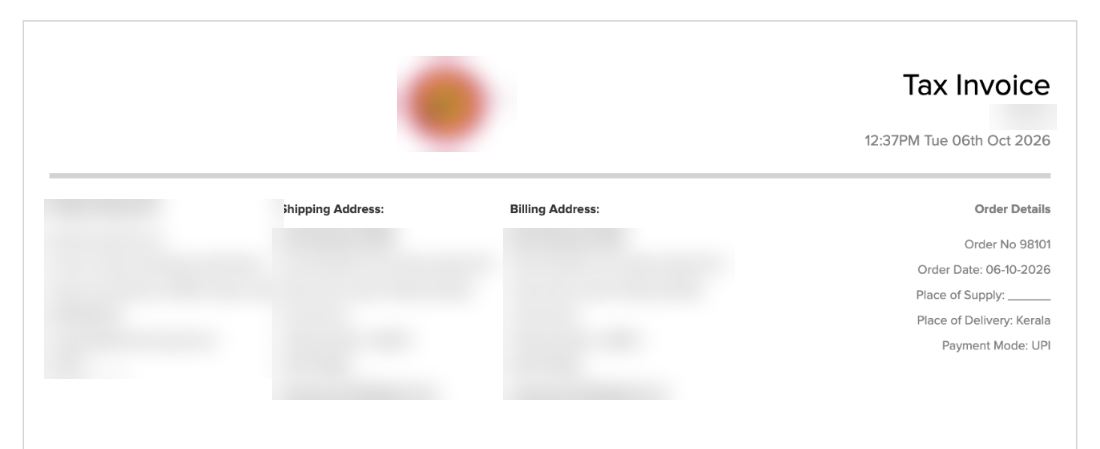
Before wedding-season orders start coming from another state, place one test order to an out-of-state pincode. Open the invoice. Check the GSTIN, HSN, place of delivery and IGST line.
If you use coupons, place one test order with a coupon applied and show that invoice to your CA. If gift cards are enabled on your plan, test that too. No heroics. Just one clean sample.
At month end, use Store Manager → Reports → Tax Report and send it to your CA before return work begins. Your store’s job is not to file returns. It is to keep the invoice and tax report tidy.
If something looks odd, ask in your private WhatsApp support group. The developers, designers and testers who build Shopnix can check your tax settings with you.
Shopnix is built for India: GST invoices, COD, UPI, pincode checks and Indian couriers are already in the store. And Shopnix charges 0% commission on sales, on every plan. So when your first Pune order comes in, the sale is yours. As it should be.
Frequently asked questions
Can Shopnix register me for GST?
No. Your CA handles registration and returns. Shopnix helps your store print GST invoices, apply tax correctly and keep reports.
Will my out-of-state orders show IGST?
When GST is on and your GST state is set, Shopnix treats orders from outside that state as IGST.
Should I switch on COD for all new states?
Not immediately. Start with prepaid or selected COD pincodes, then widen after you see delivery and return behaviour.
Got your GSTIN? Switch on GST, set your home state and place one test order to another state today. If the invoice looks wrong, ask in your Shopnix WhatsApp support group. Small fix now. Less drama later.