Take wedding outfit pre-orders with a delivery date
The 20-second version: Set a Pre-Order date on each made-to-order outfit, use size variants and the checkout comment box, and send a payment link for custom changes. Promise only what your tailors can finish.
Picture this. A buyer likes a lehenga on your page. The sangeet date is fixed, and your parcel date is a mystery. She stares at the Buy button like it's day five of a Test match: anything can happen.
Then she closes the tab. Not because of the price, but because nobody told her the one thing she needed. Arre, let's fix that today.
The question before the payment
Made-to-order is normal in wedding season. The blouse gets fitted, the lehenga gets altered, the sherwani gets stitched. Your buyer knows this.
What she doesn't know is your date. As per the wedding-season dates in our India calendar, the season starts on 20 November and runs till February. So this question is about to land on you from every side.
The fix is simple. Show the ready-by date on the product page, before she pays.
Promise only what the tailor can finish
'We will ship soon' sounds friendly. To a bride's family planning a haldi, it sounds like 'no idea'.
Picture a lehenga boutique in Surat with two master tailors. They can finish only so many outfits a week. Or a sherwani shop in Lucknow, where one fabric delivery runs late. A date that ignores all this is a promise you will break.
Tip: Count backwards from the function: courier days, packing, stitching, fabric. What is left is your honest date. Add a small buffer.
Pre-Order, date, done
Now the shots. Do this for each outfit you make to order.
- Go to Products → Manage Products and open the outfit.
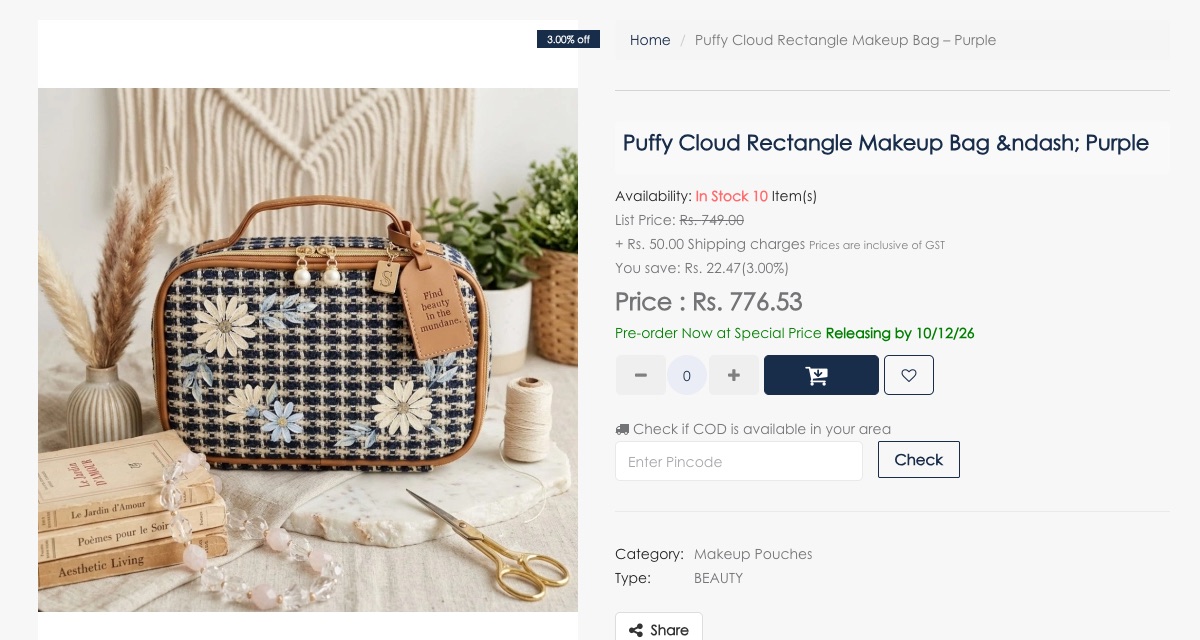
- On the Product Details tab, tick Pre-Order.
- Fill 'Pre-Order Available By' with a date you can truly deliver.
- Save. The product page now carries a pre-order message and the date.
- Back in Manage Products, use the Pre-Order column or filter to see which outfits are on pre-order.
Full steps are in the Help article on taking pre-orders. It works for any physical product you make or order on demand.
Now when a buyer asks on WhatsApp, you point to the page. No long typing, no guessing.
Sizes, notes and a payment link
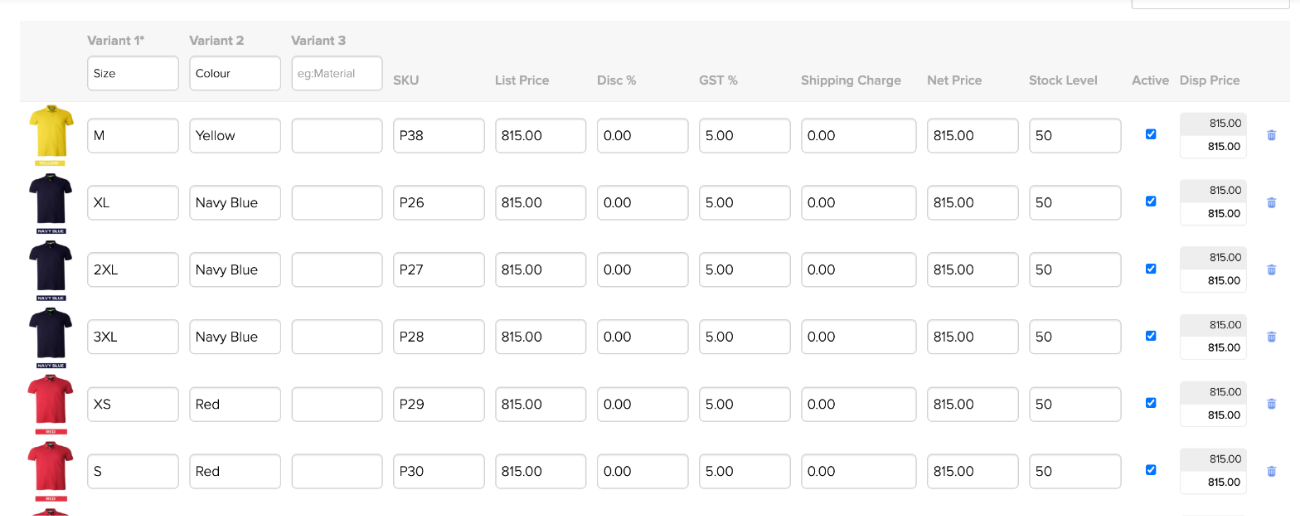
Lehengas, blouses and sherwanis come in sizes. Tick 'This product has multiple options' and add up to 3 option names, like Size and Colour. Each variant gets its own price and stock. The Help article on product variants shows how.
For blouse length, sleeve changes or lining, switch on the comment box at checkout. Go to Setup → Settings → Orders → Checkout. Details are in Checkout options.
What if the buyer wants a change that doesn't fit the cart? Create the order for her under Orders, add the items and send a Payment Link. First confirm that her pincode is one you deliver to. Collect the payment once the details are fixed. See Send a payment link.
Read week one like a scorecard
After a week, open your Orders and count the pre-orders. Put that number next to your tailoring capacity, fabric stock and delivery dates.
Don't assume demand will keep climbing. Add more outfits only when your tailors still have room to breathe.
If you get stuck anywhere, ask in your private WhatsApp support group, where the people who build Shopnix answer. And checkout stays built for India, with COD, UPI and card payments ready to use.
Frequently asked questions
Can I put only some products on pre-order?
Yes. Pre-Order is set on each product, so your ready-stock items stay normal and only made-to-order outfits show a ready-by date.
Where does the buyer write blouse length or sleeve changes?
In the checkout comment box. Switch it on under Setup → Settings → Orders → Checkout.
What if the buyer wants a change that the cart can't take?
Create the order for the customer, fix the details with her, and send a Payment Link from the order.
Pick five made-to-order outfits, set an honest ready-by date on each one, and publish them before 20 November. Chalo, the wedding calendar is not going to wait for you.