MANAGE · INVENTORY
Inventory, sorted. Every size, every colour, every count.
Add a product once, with its sizes, colours and stock. Shopnix keeps count with every order, warns you before you run out, and tells waiting customers when it's back.


EVERYTHING YOU NEED
The whole stockroom, in Store Manager
No spreadsheet on the side, no separate inventory software.
STEP 1 · ADD YOUR PRODUCTS
Put every product where customers expect it
Type, category, sub-category. This decor store files its idols under Artefacts › Brass Idols, and the menu builds itself. A product can sit in more than one place.
- Photos, description, price and GST
- SKU for your own records
- Minimum order quantity

STEP 2 · ADD SIZES AND COLOURS
One product. Every variant on one screen.
A real apparel store sells this polo in XS to 3XL and several colours: 49 variants, all managed from one table.

WHAT CUSTOMERS SEE
Pick a size, pick a colour, buy
The same variants show as pickers on your store, with each colour's own photo. Sold-out combinations can't be ordered.
STEP 3 · SELL
Orders count the stock for you
Every order takes stock down, for exactly the variant bought. Cancel it or get it back, and the stock goes back up. The count customers see on the product page is always right.

A real product page: "In Stock 10 Item(s)".
STEP 4 · RESTOCK
Warned before you run out. Sold again the day it's back.
IN BULK
Change 500 products in one go
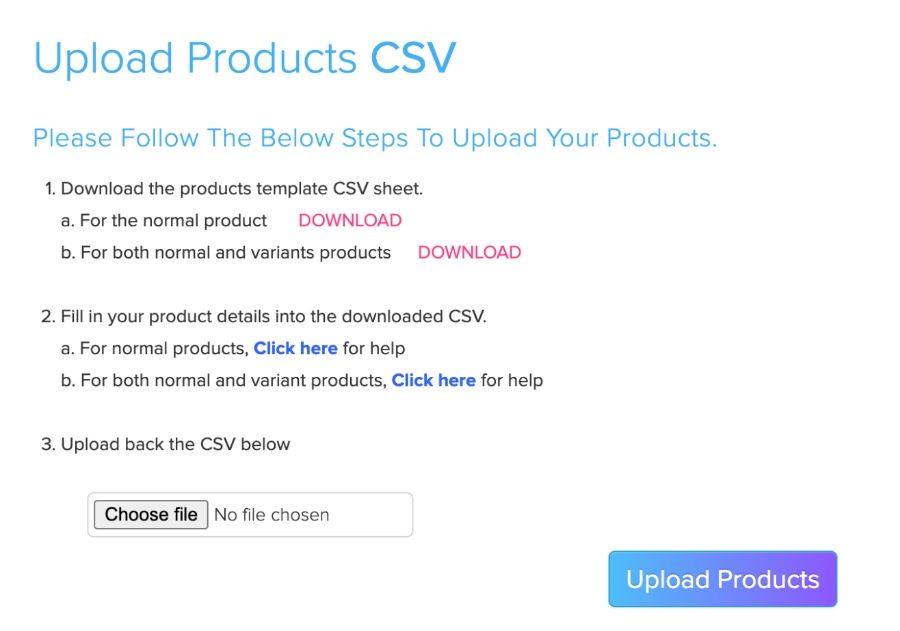
- Upload products and variants from a spreadsheet
- Download, edit stock in Excel, upload back
- Bulk images and bulk tags
- Recalculate prices after a GST change
YOUR SPREADSHEETS AND GOOGLE
Stock in Excel, catalogue on Google
 Excel
ExcelDownload your products, change stock and prices in Excel, upload them back.
 Google
Your catalogue, with stock, goes to Google every night.
Logos belong to their owners.

Store Manager, shown with sample data.
ONE SCREEN
Every price and stock level, on one screen
The inventory screen lists every product, and every size and colour under it, in one grid. Change the price, discount, GST rate, shipping charge or stock right there, without opening each product.
- Variants listed under their product
- Edit right in the list
- Stock counting can be switched off for made-to-order items
REPORTS
Know what to reorder, and what to stop buying


BY BUSINESS
Stock works the way your shelf works
Sizes run out one at a time
- Stock per size and colour
- Photos per colour
- Size filters on your store
One-of-a-kind pieces
- Stock of 1, never sold twice
- "Notify me" for the next one
- Pre-order the next batch
Stock per location
- Each outlet's own count
- Head office sees all
- Franchise stores →

“Shopnix made it easy to take my 10-year-old shop online. Over the past 6 years, my business has grown across India.”Nawaz · Founder, ChocoCoorgSpice.com







Keep exploring
Frequently Asked Questions
Yes. The inventory screen lists every product and variant in a grid, where you change price, discount, GST rate, shipping charge and stock.
Up to three, like size, colour and material. Every combination has its own SKU, price, GST, stock, weight and images.
Yes. Stock goes down with every order and comes back when an order is cancelled or returned.
Yes. Low, critical and zero stock show as alerts on your dashboard, and the stock report lists every product's stock.
Customers can tap "Notify me". When you restock, they get an email, and a WhatsApp message if you have turned it on.
Yes. Download your products as a spreadsheet, change stock and prices, and upload it again.
Three levels: type, category and sub-category, each with its own banner and SEO. A product can sit in more than one category.
Stop counting stock by hand
Try Shopnix free for 14 days. No credit card needed.


